Getting started
Install, permissions and the Globe key.
Help
Step-by-step answers for dictation, meeting notes, screen videos and your to-do list, with every setting named the way the app shows it.
Popular:Set up the Globe keyRecord a meetingFix dictation and microphone problemsCreate a video and share the link
Getting started
Quick fixes
Set “Press 🌐 Key To” to “Do Nothing” in System Settings → Keyboard.
Set up the Globe keyChoose your USB or external mic under “Input device” in Settings → Dictation.
Fix dictation and microphone problemsCouldn't list screens — is Screen Recording allowed in System Settings?
Switch SwitchDesk on in Privacy & Security → Screen & System Audio Recording.
Fix Create Video problemsBrowse
Install, permissions and the Globe key.
Hold Globe, talk, let go.
Record calls, captions, search and Ask.
Screen, Window or Area, and the link.
Today’s Todo, This Week, categories.
AI Chat, Recap, Teams, iPhone, Timers.
Send to-dos in, hear back when they’re done.
Plans, trial, sign-in and sync.
What stays on your Mac, and why macOS asks.
Mic, Globe key and screen-recording fixes.
Still stuck?
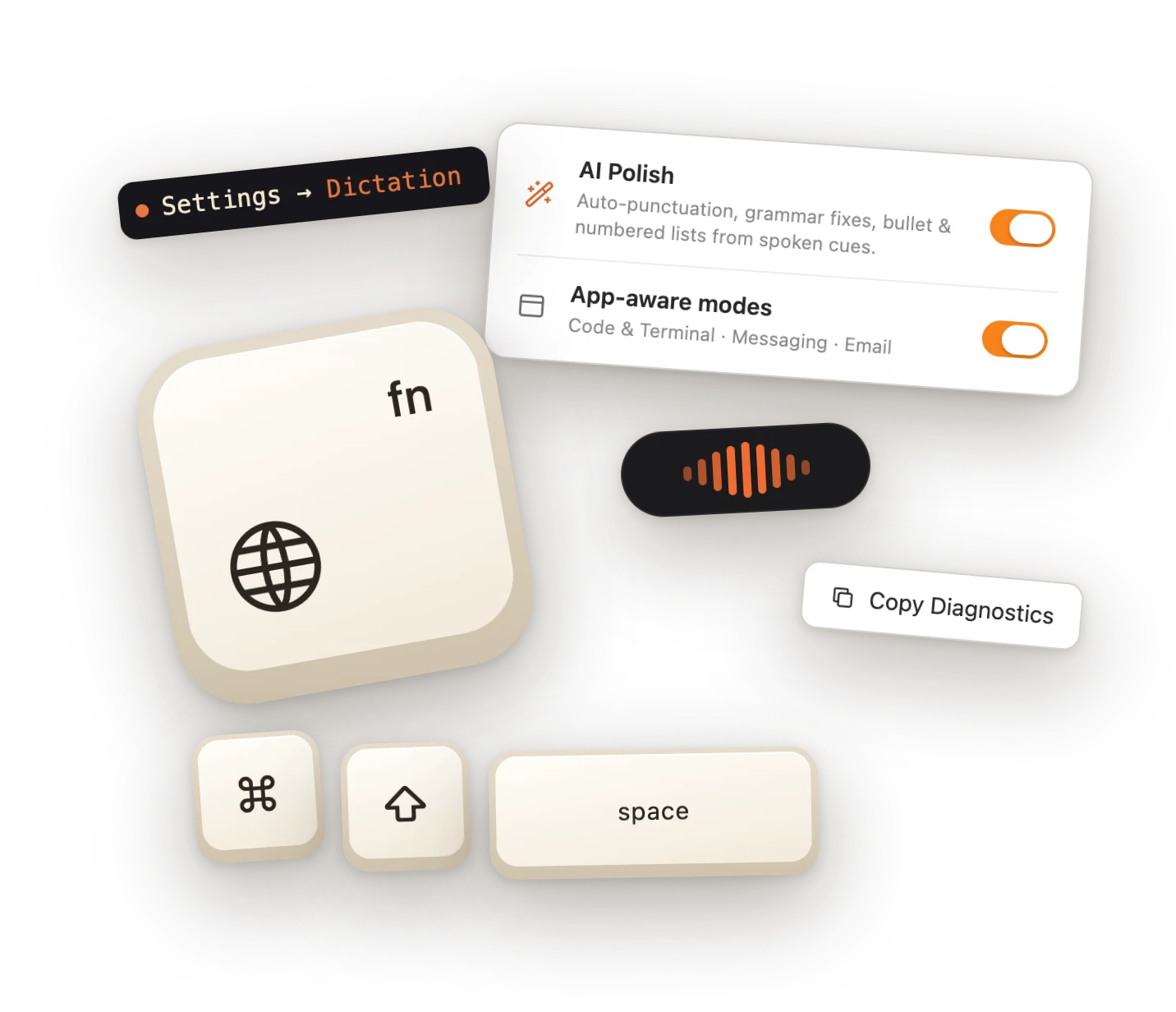
In SwitchDesk, open Settings then Dictation, scroll to the bottom and press “Copy Diagnostics”. It copies your build, your macOS version and one line per recent dictation session, never what you said. Then email support@abstrakt.group and paste it in.