Voice Dictation
Hold the Globe key, talk, let go. The cleaned-up text lands wherever your cursor is.
Explore Voice Dictation →Compare · Video
Both copy the link when you stop.
See dictation, meeting notes and the to-do list →Last checked
Pick Loom if you want
Pick SwitchDesk if
you record on a Mac, want
The share card, after Stop
Press Copy Link: it copies this demo video’s share link.
TL;DR
Loom’s free Starter plan allows 25 videos per person, 5-minute recordings and up to 720p (as of Oct 4, 2026).
Loom keeps videos in its cloud, and Starter can’t download them. SwitchDesk records each video to an MP4 on your Mac, then uploads a copy for the link.
Loom Business + AI, which adds meeting notes, is $20 per person/mo billed yearly. SwitchDesk Essential is $12/mo billed yearly: unlimited videos, 25 h/mo of meeting notes, dictation and a to-do list.
Screen recording, row by row
| SwitchDesk | Loom | |
|---|---|---|
| Price1 | Essential $12/mo billed yearly ($15 monthly). Pro $18/mo billed yearly ($23 monthly). Videos are unlimited on both. | Business $15 per person/mo billed yearly ($18 monthly). Business + AI $20 ($24 monthly). |
| Free plan1 | No free plan. A 14-day free trial. | Yes — Starter: 25 videos per person, 5-minute recordings, up to 720p. |
| Where the video lives34 | Saved on your Mac first as an MP4. Sharing uploads a copy for the link; unshared videos stay on the Mac. | In Loom’s cloud. On paid plans, creators and admins can download each video as an MP4; Starter can’t download. |
| Also in the subscription1 | Dictation into any app, meeting notes with suggested to-dos, and a to-do list. | Business + AI adds AI meeting notes, meeting recap emails and AI tasks. |
| Link at Stop24 | Yes — reserved when you start, on your clipboard at Stop while the video uploads behind it. | Yes — Loom copies the video’s link to your clipboard. |
| Transcript on the share page14 | Yes — on by default, and viewers can jump to any line. Turn it off per video in My Videos. | Yes — transcriptions in 50+ languages and closed captions on every plan. |
| Recording modes24 | Screen, Window or Area, with your camera bubble in all three (in Window mode, when the window is on the current desktop and one display). | Full screen, a window, a custom area or camera only, with your camera alongside. |
Sources and the dates we read them are listed under the FAQ.
Create Video
Loom copies its link at Stop too. The difference is the file: SwitchDesk records to your Mac first, then uploads a copy behind the link.
Try it: press Start Recording
Drag out exactly the part of the screen you want in the video. You can move and resize it before recording starts.
Your camera bubble records too — drag it anywhere inside the area.
That window is on another desktop, so your camera won't be in this video. Switch to its desktop first to include it.
Drag out exactly the part of the screen you want in the video. You can move and resize it before recording starts.
Your camera bubble records too — drag it anywhere inside the area.
That window is on another desktop, so your camera won't be in this video. Switch to its desktop first to include it.
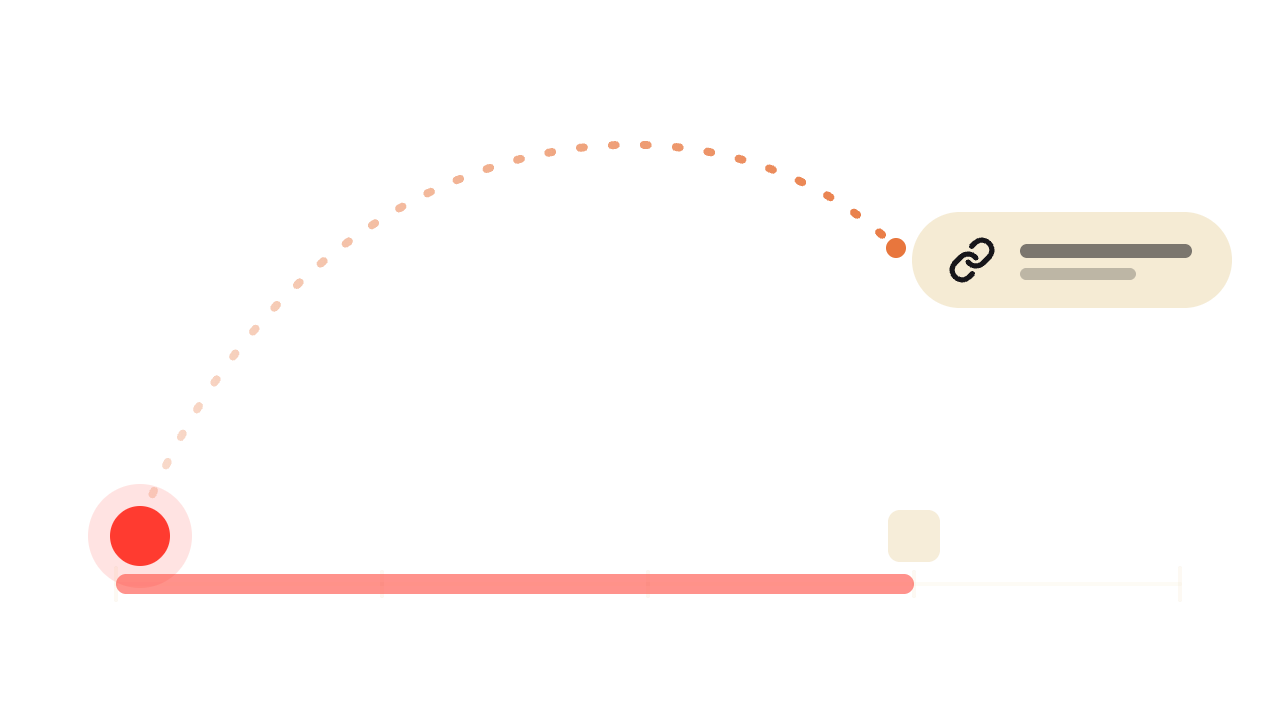
Illustration: “Press to skip” is added for this page. In the app, clicking the countdown cancels the recording. The link dropping into the message and the dashed arc are animations added for this page.
The share page
Anyone with the link watches in a browser, no account needed. Press a timestamp and the video jumps to that line. Links are unlisted, not private.
“Lumora pilot walkthrough” on its share page.
Recording modes
Window records one app’s window. Area lets you drag any rectangle, or pick “Square video” or “Widescreen video (16:9)”. Turn on Camera and your bubble records in every mode.
Try it: switch between Screen, Window and Area.
Drag out exactly the part of the screen you want in the video. You can move and resize it before recording starts.
Your camera bubble records too — drag it anywhere inside the area.
That window is on another desktop, so your camera won't be in this video. Switch to its desktop first to include it.
Drag out exactly the part of the screen you want in the video. You can move and resize it before recording starts.
Your camera bubble records too — drag it anywhere inside the area.
That window is on another desktop, so your camera won't be in this video. Switch to its desktop first to include it.
My Videos lists every recording on this Mac. “Kiln schedule for Saturday” was never shared, so it has no status line: it hasn’t left the Mac.
Stop sharing a video and its link stops working right away, while the video stays on your Mac.
Turn off “Copy a share link when I stop recording” and a new video stays on your Mac until you share it from My Videos.
My Videos, three rows: “Lumora pilot walkthrough” (Shared · 7 views · transcript ready), “Q4 hiring plan quick tour” (Uploading 64%) and “Kiln schedule for Saturday”, which was never shared, so it has no status line.
Candidly
If one of these is what you need most, Loom is the better pick. Each point is from Loom’s own pages.
Windows, iPhone, Android and Chrome. Loom records on all of them. SwitchDesk is a Mac app.12
Camera-only videos. Loom can record just your camera; SwitchDesk always records a screen, window or area.2
An editor. Business adds trimming, stitching and waveform editing. SwitchDesk has no video editing.1
Comments and reactions. Viewers can comment and react on Loom videos. SwitchDesk share pages have neither.1
Password-protected videos. On Loom Business. SwitchDesk links are unlisted: anyone with the link can watch.1
Enterprise admin. SSO, SCIM and admin controls on Loom Enterprise.1
A mature shared library. Team libraries that hold everyone’s videos; Starter allows up to 50 members.1
Price and switching
| Plan | Price | What you get |
|---|---|---|
| SwitchDesk Essential | $12/mobilled yearly$15 monthly | Unlimited videos with share links, dictation, 25 h/mo of meeting notes, your to-do list and Teams |
| SwitchDesk Pro | $18/mobilled yearly$23 monthly | Everything in Essential, plus unlimited meeting notes and Recap |
| Loom Starter | $0free | 25 videos per person, 5-minute recordings, up to 720p |
| Loom Business | $15/moper person, billed yearly$18 monthly | Unlimited videos and recording time, editing, comments, password-protected videos |
| Loom Business + AI | $20/moper person, billed yearly$24 monthly | Business, plus AI meeting notes, recap emails and AI tasks |
Source: loom.com/pricing. Prices in US dollars, per person.
There’s no importer, so moving is mostly about what you keep.
Download the Loom videos you want to keep.
On Loom’s paid plans, creators and admins download one video at a time as an MP4. Loom’s help center says Starter can’t download.
Install SwitchDesk.
It lives in your menu bar. Allow screen recording when macOS asks, so the picker can show your screen and windows.
Leave “Copy a share link when I stop recording” on.
It’s on by default, so sharing works the way it did in Loom.
Copy a share link when I stop recording
The link is on your clipboard the moment you press Stop; the video uploads behind it. Off: share from My Videos when you want to.
Use Window mode for single-app demos.
Pick the app’s window in the picker. Tip: double-click a preview to start.
By the way Shown in the Apricot theme
One subscription covers four tools. The to-dos you say and the action items from your calls land in one list; the walkthrough becomes a link.
Hold the Globe key, talk, let go. The cleaned-up text lands wherever your cursor is.
Explore Voice Dictation →A compact meeting notepad in the Apricot scheme with a nested list: “1. Pilot: 12 seats, support team”, a bullet “Starts next month” under it, then “2. Send revised proposal (Thu)”.
Record a call with nothing joining it. Notes and suggested to-dos arrive when you hang up.
Explore Meeting Notes →SwitchDesk to-do window, Apricot theme: Today's Todo: Prep pricing slides for Thursday; Record Lumora pilot walkthrough (done); Reply to Daniel about the Q4 hiring plan (in progress); Book Theo's dentist appointment.
Record the Lumora walkthrough, then check it off in “Today’s Todo”.
Explore the To-Do List →Teams
Switch on Fernhill for your team and Maya and Daniel see Sam’s Fernhill to-dos, including the ones he moved into Today. Personal, Family and Pottery Shop stay private.
“Categories you toggle on are visible to teammates. Untoggled categories stay private.” Settings → Teams
Each person needs their own SwitchDesk account today.
Sam's to-do list holds Fernhill, Personal, Family and Pottery Shop; in Settings → Teams only Fernhill is switched on, so Maya's own list shows just Sam's Fernhill to-dos — including the Fernhill items he moved into Today.
Teams
Shared with team
Categories you toggle on are visible to teammates. Untoggled categories stay private.
Personal, Family and Pottery Shop stay private.
Rebuilt from the app’s screens, with demo names. The row checking off and the switch to Maya’s view are animations added for this page.
Prices and limits are as each company listed them on the date shown; we re-check this page every 90 days. Loom is a trademark of its owner; SwitchDesk isn’t affiliated with it.