01
Screen
Pick a display, see it live, double-click to start.
Best for Walkthroughs that move across apps.
Create Video
Pick Screen, Window or Area, talk with your camera on, and the link is on your clipboard at Stop.
macOS 14.6 or later14-day free trial
Try it: pick a mode, switch Camera on, then press “Start Recording”.
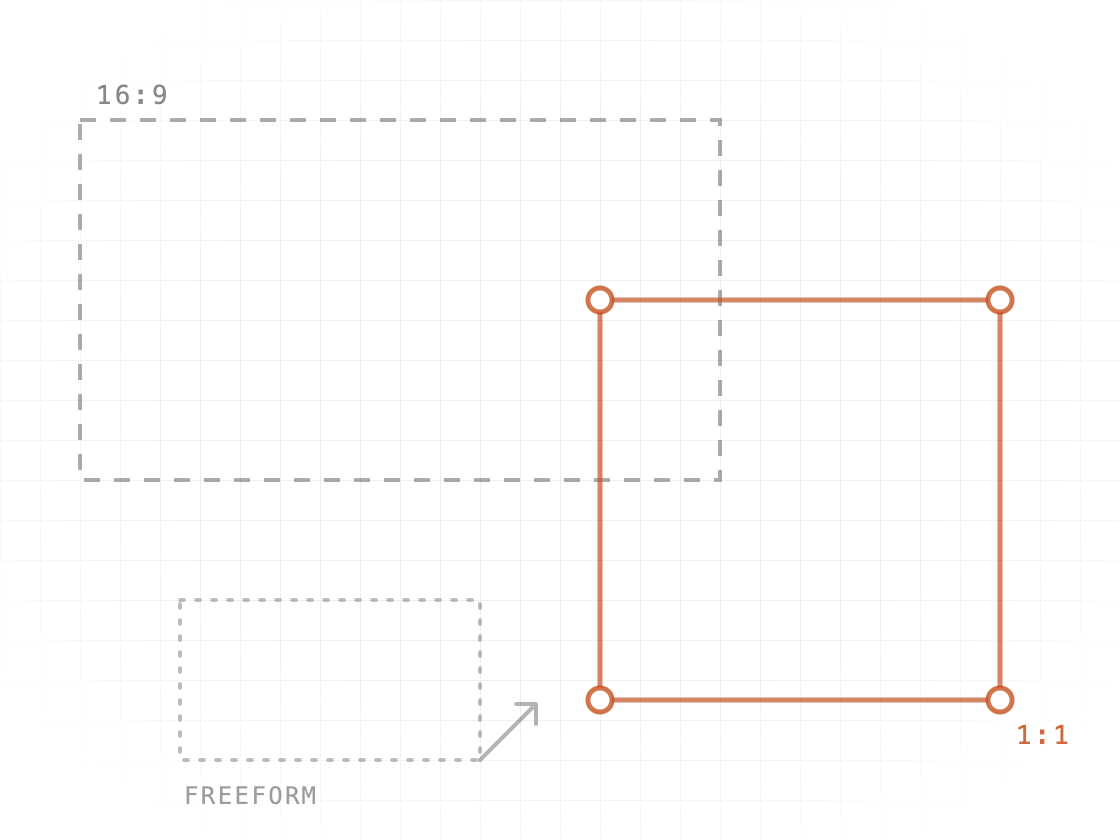
Drag out exactly the part of the screen you want in the video. You can move and resize it before recording starts.
Your camera bubble records too — drag it anywhere inside the area.
That window is on another desktop, so your camera won't be in this video. Switch to its desktop first to include it.
Try it: pick a mode, switch Camera on, then press “Start Recording”.
Drag out exactly the part of the screen you want in the video. You can move and resize it before recording starts.
Your camera bubble records too — drag it anywhere inside the area.
That window is on another desktop, so your camera won't be in this video. Switch to its desktop first to include it.
Recording modes
01
Pick a display, see it live, double-click to start.
Best for Walkthroughs that move across apps.
02
Every window on every desktop, as thumbnails.
Best for Showing one app without your inbox.
03
Record one part of the screen and leave the rest out.
Best for Short clips and bug repros.
Microphone, Camera, System Audio
Your mic records what you say. Switch on “This Mac's audio” to include a demo’s sound, and Camera to add your face in a round bubble. Drag it anywhere before you start.
In Window mode, the camera bubble is recorded when the window is on the current desktop and on one display.
Drag the bubble anywhere; switch Camera off to hide it.

Area
Record the one panel that matters, not your whole screen. Drag a box, or pick a shape and SwitchDesk places it. Return records; Esc cancels.
My Videos
Each recording is an MP4 on this Mac. Sharing uploads a copy for the link; “Stop Sharing…” deletes that copy and the link stops working; your MP4 stays.
A coded copy of the My Videos window. Numbers added for this page.
Click a title to rename it. Each row’s ··· menu has “Copy Transcript”, “Show Transcript on Share Page”, “Stop Sharing…” and “Delete…”.
Settings → Videos
Copy a share link when I stop recording
The link is on your clipboard the moment you press Stop; the video uploads behind it. Off: share from My Videos when you want to.
Lands in your to-do list
The share card reads “Ready to share · transcript ready”, “Record Lumora pilot walkthrough” is checked off, then Sam holds the Globe key and says “add a todo follow up with Maya about the pilot walkthrough”; the dictation pill shows “Todo Added” and “Follow up with Maya about the pilot walkthrough” lands under Fernhill.
You say“add a todo follow up with Maya about the pilot walkthrough”
Sam’s to-do list: Today’s Todo with “Record Lumora pilot walkthrough” checked off, and under Fernhill, “Follow up with Maya about the pilot walkthrough”.
Animation added for this page.
The to-dos land in one list; the walkthrough becomes a link.
Also in SwitchDesk
Settings → Videos and each video stays on this Mac until you press Share.