The Activity list in Meeting Automations no longer runs on forever: it shows the five latest sends, and you can page back through older ones. Calls waiting for your approval and sends that failed stay pinned at the top with their Send, Review and Retry buttons.
Improvements
Meetings: automation activity shows the latest five with paging; calls that need you stay pinned on top
Ask the Chat window or a meeting's Ask panel to write a follow-up, a reply or a recap, and you get two or three short drafts, each a different approach. Click through them, copy one, or open it in Apple Mail, Gmail or Outlook with the subject and recipients filled in.
New
Chat: ask for an email and get 2 or 3 drafts, each a different approach, to click through
Chat:Copy or Open in Mail (Apple Mail, Gmail or Outlook) with the subject filled in
Meetings: ask the meeting's Ask panel to write a follow-up and the drafts use the call's notes and attendees
Chat: say make B shorter or more casual and only that draft is rewritten
Chat: add your scheduling link in Settings and drafts that propose a call include it
Settings → Dictation now shows voice commands as one row. Open it to see every command, grouped by to-dos, timers, chat and meetings, calendar, opening apps and sites, and dictating.
New
Dictation: the list now includes remind me to, due dates, repeats, recording and calendar questions
Improvements
Dictation:Voice commands fold into one row in Settings, open it to see every command in groups
Fixes
To-dos: a new install no longer shows a duplicate This Week (2) list
Choose Sink to bottom in Settings → To-Do List → Completed and done items stay in their section, below the open ones. On iPhone: tap the mic, talk, tap again and it's added, plus cleaner Settings pages.
New
To-dos: checked-off items can sink to the bottom of their own section
To-dos: uncheck one and it goes right back where it was
iPhone:Review before sending in Settings → Dictation if you want to check first
Improvements
iPhone: tap the mic and talk right away, your first words are no longer lost
iPhone: tap the mic again and your to-do is added, no extra Send tap
Fixes
iPhone: Settings pages fit every iPhone, no more giant or squeezed cards
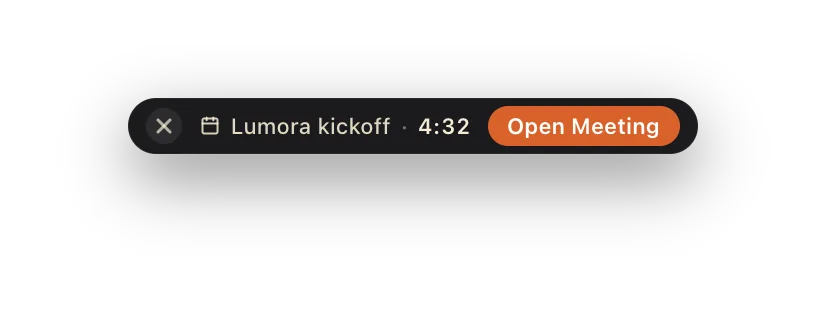
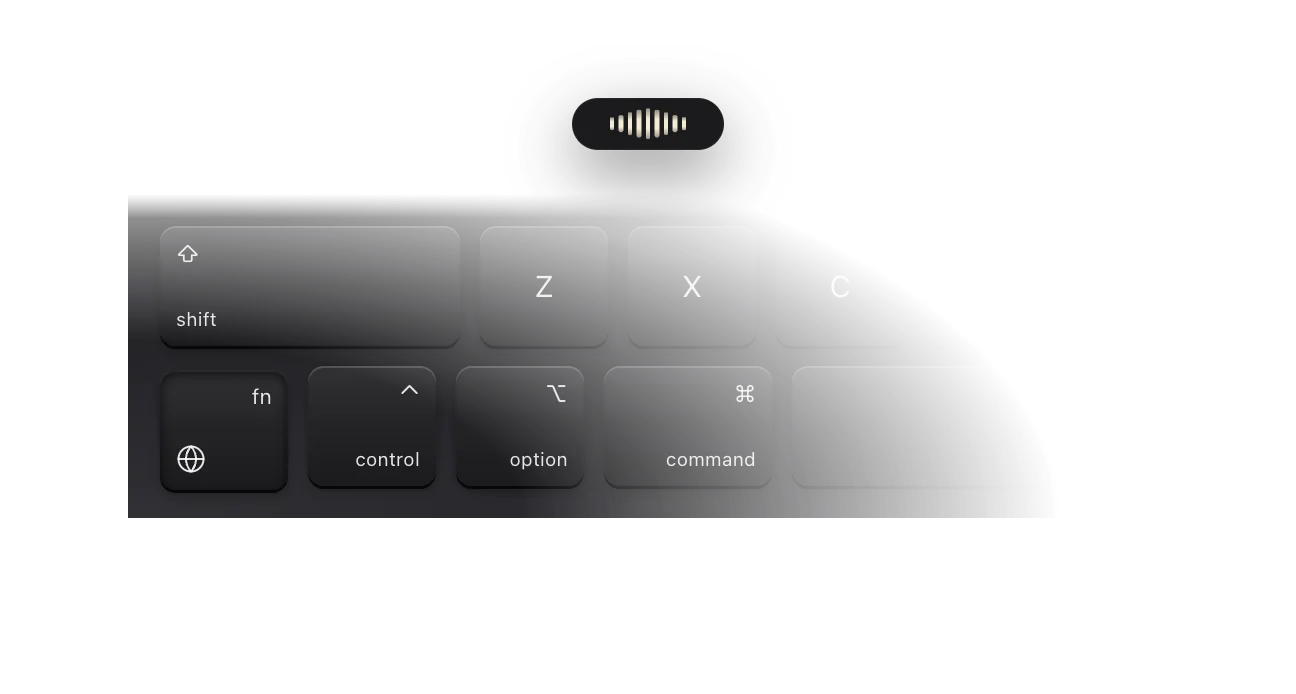
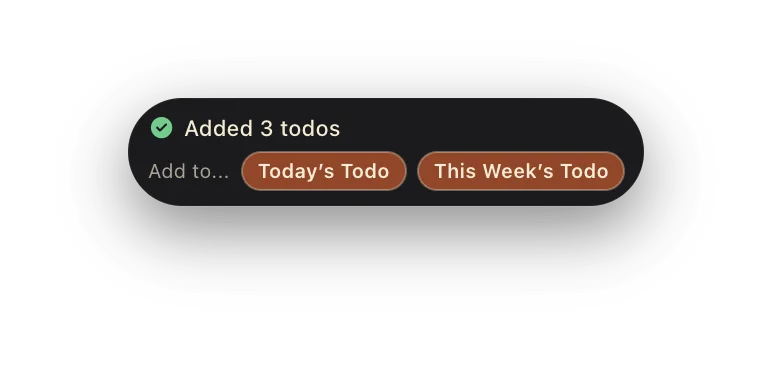
The floating pills (dictation, timers, meeting countdown and recording) can now sit in the top-right corner under the menu bar instead of bottom center. They stay stacked neatly, and bottom center is still the default.
New
Pills: choose bottom center or top right in Settings → Appearance
Dictation: say Open Slack or Open Work Chrome to jump straight there
The main window's toolbar now has one button you choose: My Meetings, Calendar, Notes, Recap or Board. It opens My Meetings by default, and every window is still in the calendar menu next to it, with Board at the bottom.
New
To-dos: say a date like "October 29th" and the to-do is due that day, moving into Today as it nears
To-dos: chat cards show the due date as a chip you can click to change
Toolbar: choose which window gets its own button in Settings → Appearance
Improvements
Meetings:one click opens My Meetings from the to-do list
Meetings: automation status is now one slim line with Retry now and a ✕ to hide it
Board: moved into the calendar menu, at the bottom
After an update, What's new now shows every change since the version you last used, grouped by new features, improvements and fixes. Scroll back through earlier updates anytime from Help.
New
What's new: see everything that changed since your last update, grouped and easy to scan
What's new: scroll back through earlier updates from Help → What's New in SwitchDesk
Dictation pastes your words sooner, spaces repeat dictations correctly, and a banner now tells you exactly why dictation can't work, with a one-click fix. The calendar opens on your calls, Monday to Friday. AI Access walks you through connecting ChatGPT, Claude, Grok and more in a few short steps, and Notes opens ready to type.
New
Dictation: a banner tells you why dictation can’t work, with a one-click Fix
Improvements
Dictation: pastes your words about half a second sooner
Dictation: adds the space between back-to-back dictations
Dictation: spoken punctuation, like colon, becomes the symbol
Calendar: opens on your calls, Monday to Friday
AI Access: connect ChatGPT, Claude, Grok and more in a few short steps
Notes: opens ready to type, and the list slides in from the side
Fixes
Dictation: your clipboard comes back as it was after quick dictations
To-dos: the buttons on a to-do’s details no longer vanish on hover
A calendar window with notes before each call. Ask questions across all your meetings. Repeating to-dos. A Notes window. Connect AI tools to your list over MCP or the CLI. The app now updates itself, and you can delete your account in the app.
New
Calendar: a calendar window, with notes for each call ready when it starts
Meetings: ask questions across all your meetings with ⇧⌘J
To-dos: repeating to-dos: just say every Monday
Notes: one Notes window, with voice and automatic titles
AI Access: connect ChatGPT, Claude and other AI tools to your list
Updates: the app now updates itself, quietly in the background
Improvements
Meetings: auto-record starts however you join: Zoom, Meet or Teams
Video: record as long as you like, with a link for every take
Video: shared videos play right in the app, with playback speed
To-dos: a cleaner details panel, with cards you can rearrange
Account: delete your account right in the app
Fixes
Video: long recordings no longer cut off partway through
Sync: a to-do edited on two devices at once no longer goes missing
Sign-in links that still work after an email scanner opens them
Sign-in emails now carry the SwitchDesk logo and one clear button, which opens a sign-in page on switchdesk.org that email link scanners can’t use up before you click. The app’s Privacy and Terms links point to switchdesk.org too.
Fixes
· 8 builds
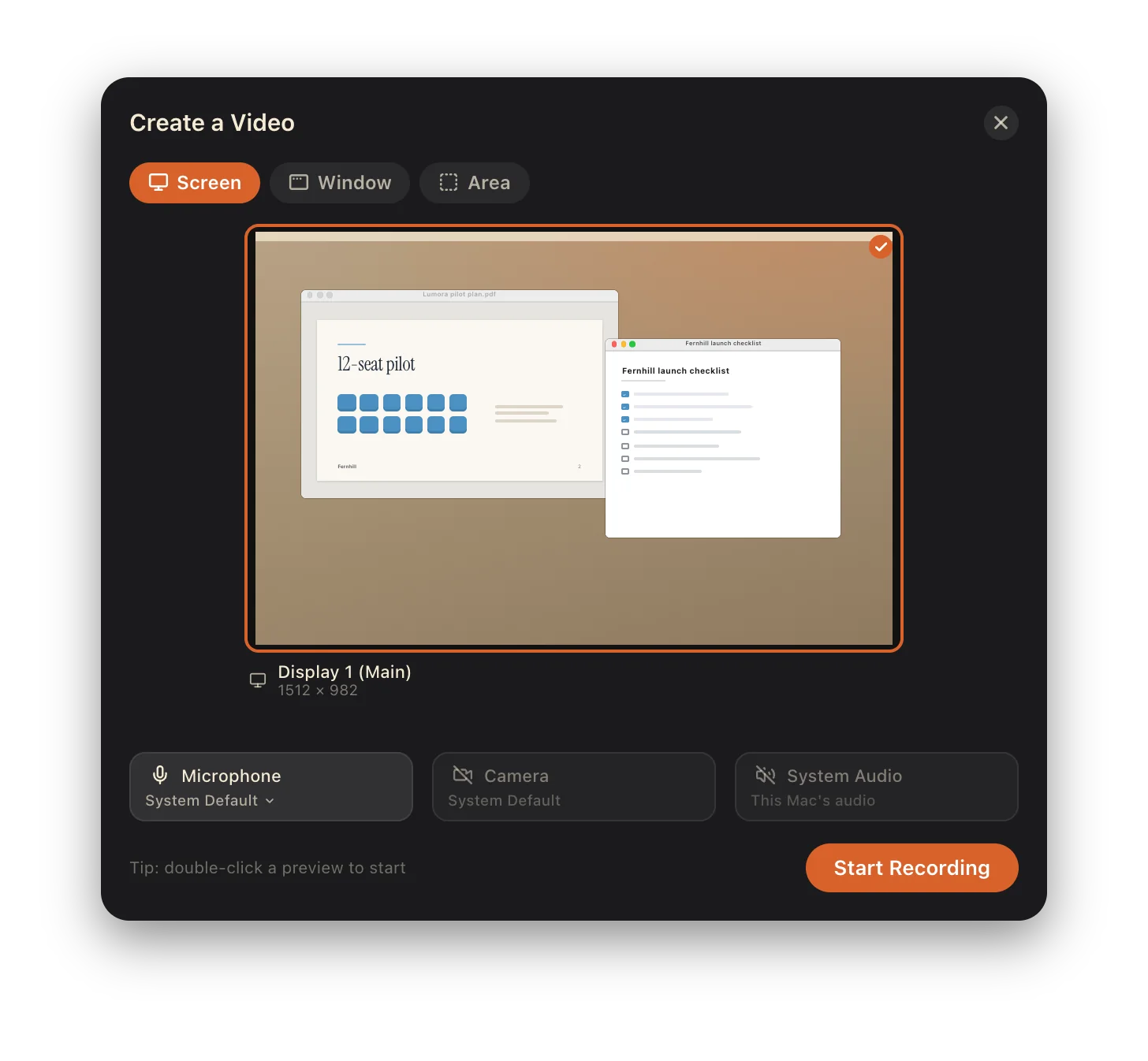
Create Video, from picking a window to the share link
Builds 222–228: seven builds in one day, touching every step from the picker to the share page.
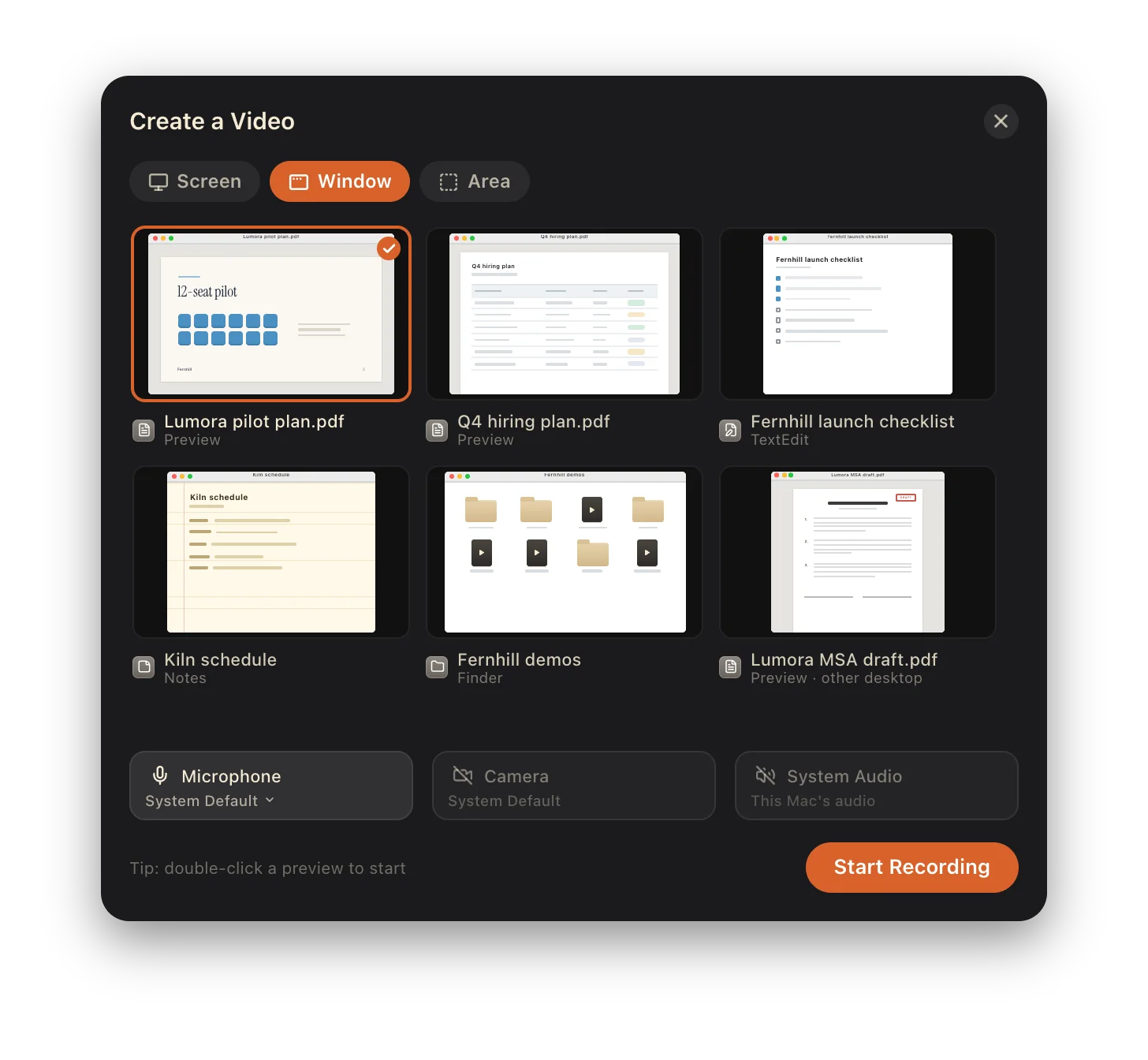
The menu bar tile, the picker (“Create a Video”) and Settings now say “Create Video”. Next to “Record Meeting”, “Record Video” read like recording the video call.
A share card when you stop, with the link already copied
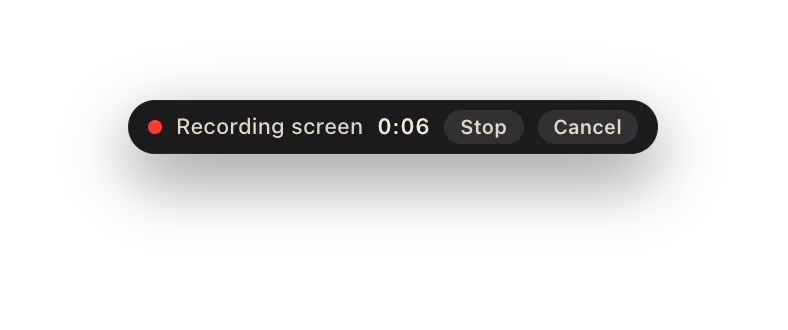
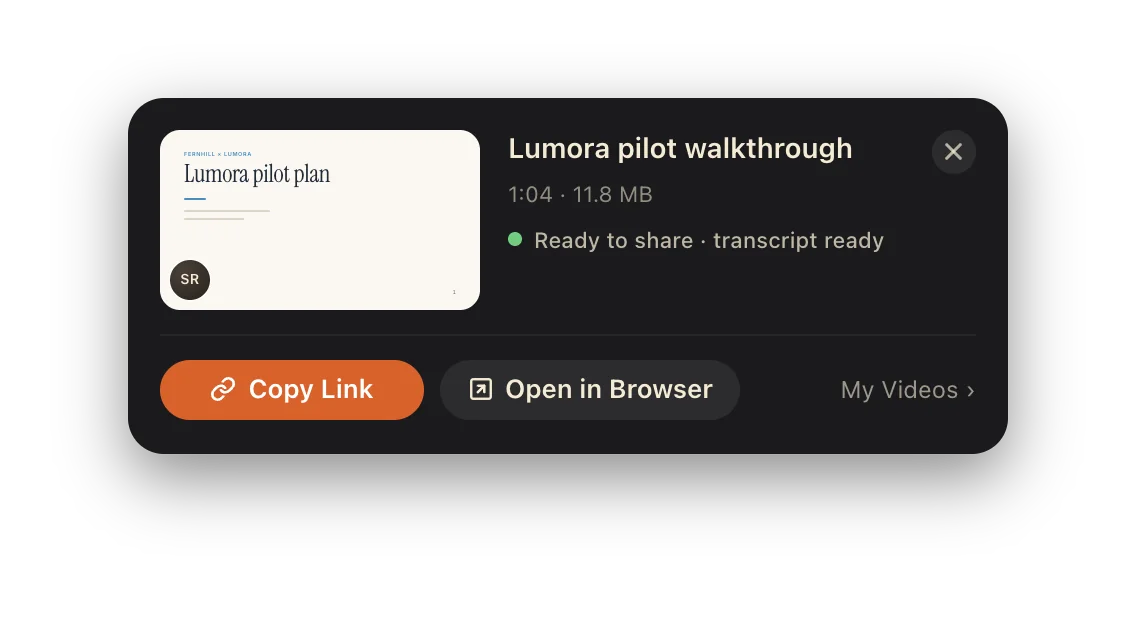
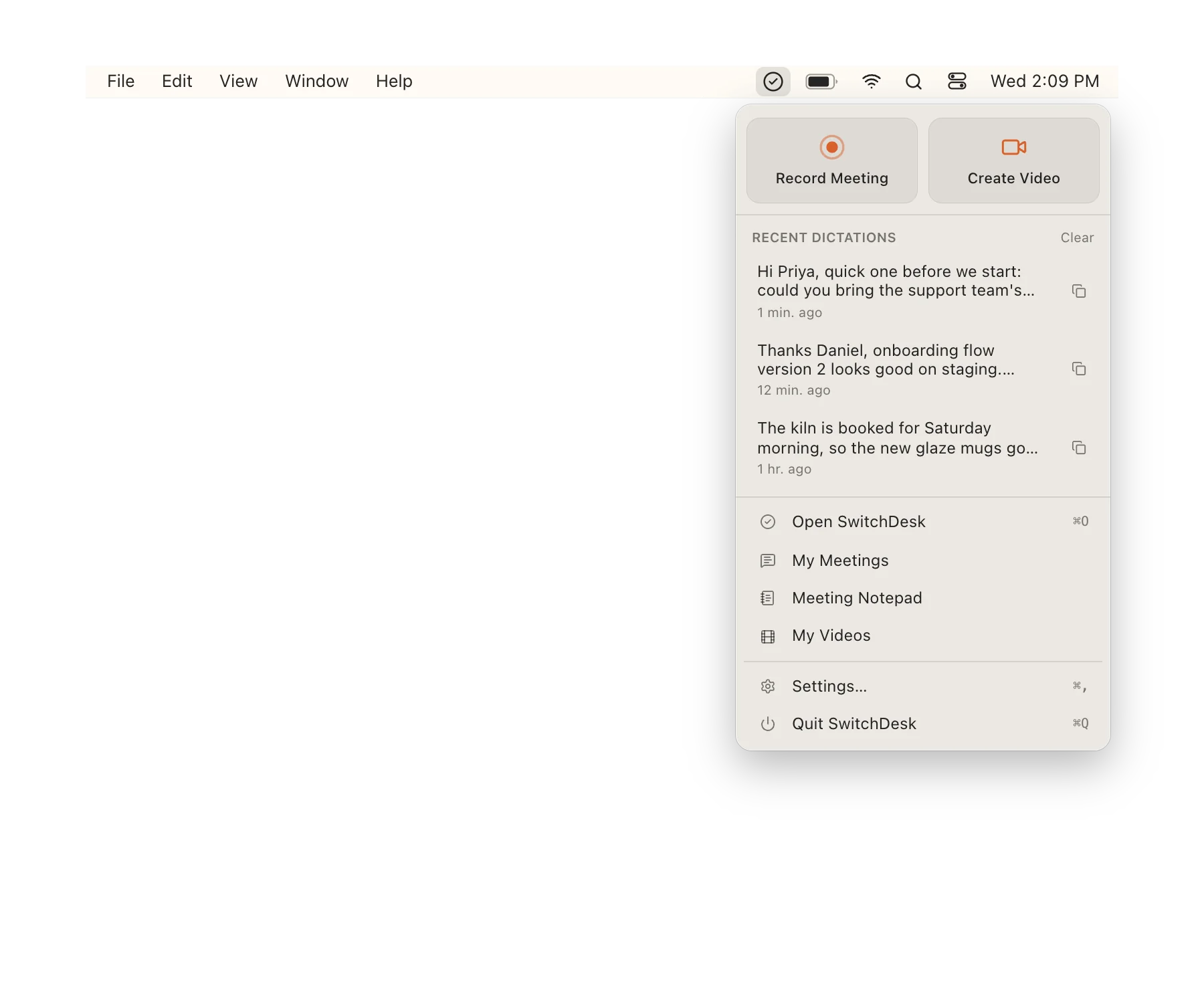
When a video stops, a card shows its upload with the link already copied, plus “Open in Browser” and “My Videos”. The menu bar now opens with two big record tiles, one for a meeting and one for a video, and in Window mode your camera bubble is recorded too (for a window on the current desktop).
Shared videos now live on new storage built for streaming, so a long recording is no longer held back by the old 50 MB upload limit. Links you already sent keep working.
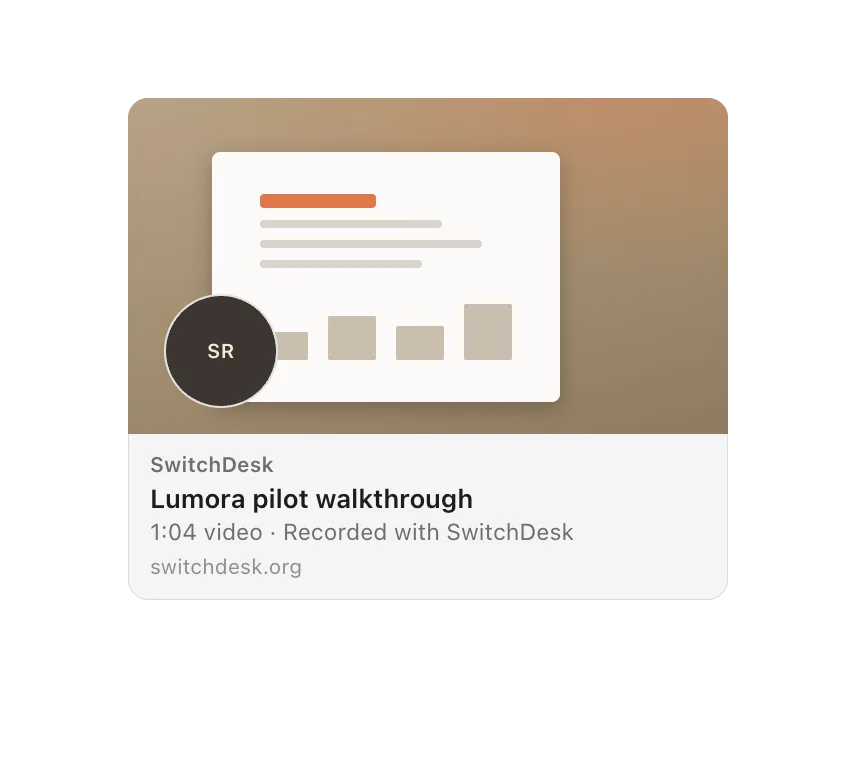
A shared video’s link opens a SwitchDesk page with the title, the player and a transcript you can jump around in and copy, and it unfurls in chat apps with the video’s own title and thumbnail. Links copied before this keep working.
When you record a window, the picker now shows windows on every desktop and behind full-screen apps, not just the current one, with “other desktop” under the ones that live elsewhere.
The link is on your clipboard when you stop recording
A video’s link is reserved when you start recording and copied when you stop, while the upload runs behind it and picks up again after a quit or a dropped connection. Each video gets a transcript on its share page (you can hide it per video) and, unless you typed a title, a short one made from what you said.
Send finished calls to Zapier, Make, n8n or your own server
In Settings → Developer → Meeting exports, point a category at a webhook, and its calls are sent there when they end, signed by our server so the receiver can trust them. Only calls recorded after you set it up are sent, and by default you review each one first.
Meeting notes: lists that behave like Apple Notes and Google Docs
In the notepad and My Notes, Tab turns a numbered item into a bullet under the one above and Shift-Tab turns it back. Numbers are automatic, so a stray keystroke can’t turn “1.” into “11.”, and pasted lists renumber themselves.
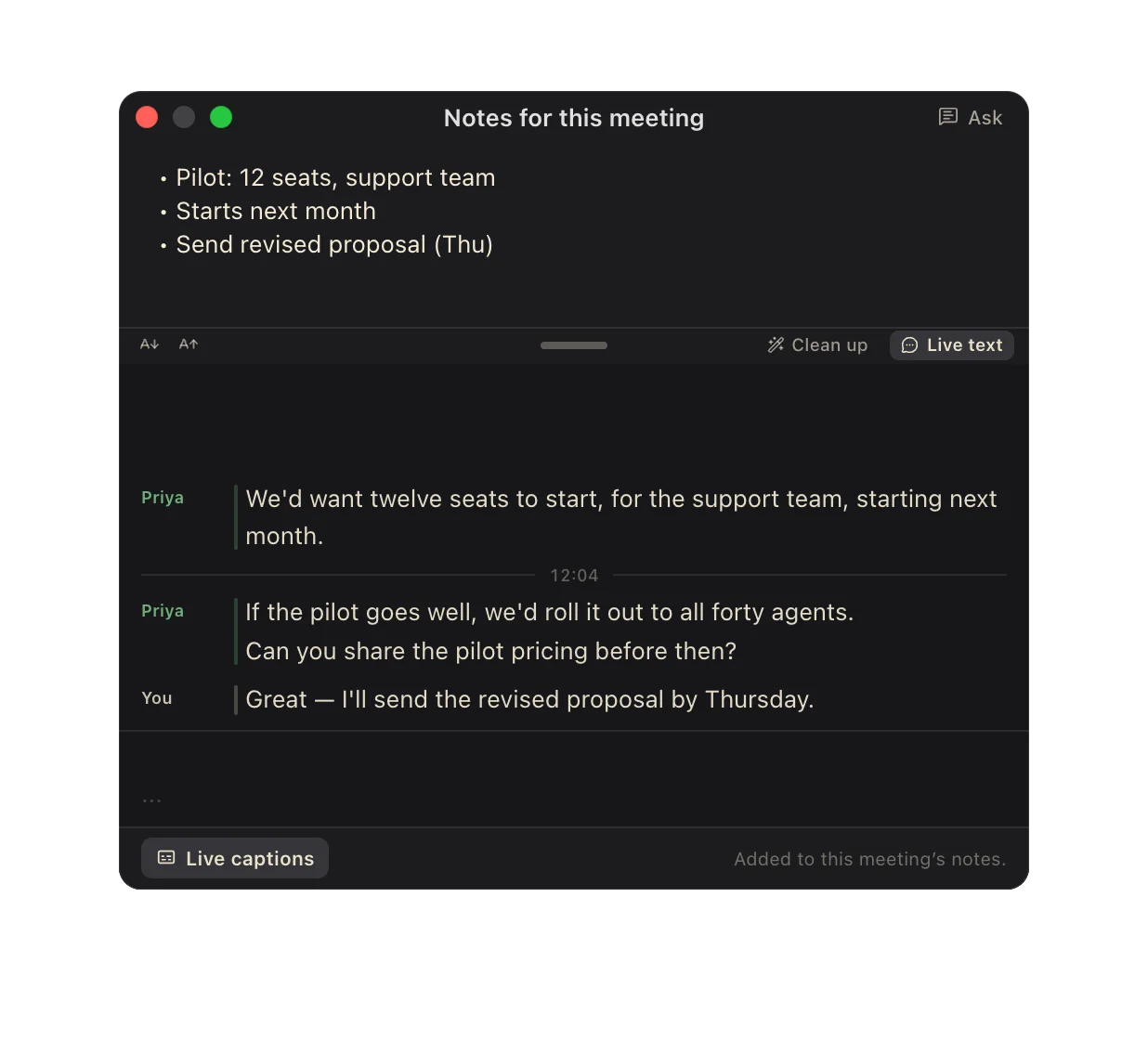
The meeting notepad with a numbered list: item 2 becomes a bullet under item 1 and the next item renumbers to 2.
Notes for this meetingAsk
1.Pilot: 12 seats, support team
•Starts next month
2.Send revised proposal (Thu)
Live captions
Tab nests a line; the numbers fix themselves · Animation added for this page
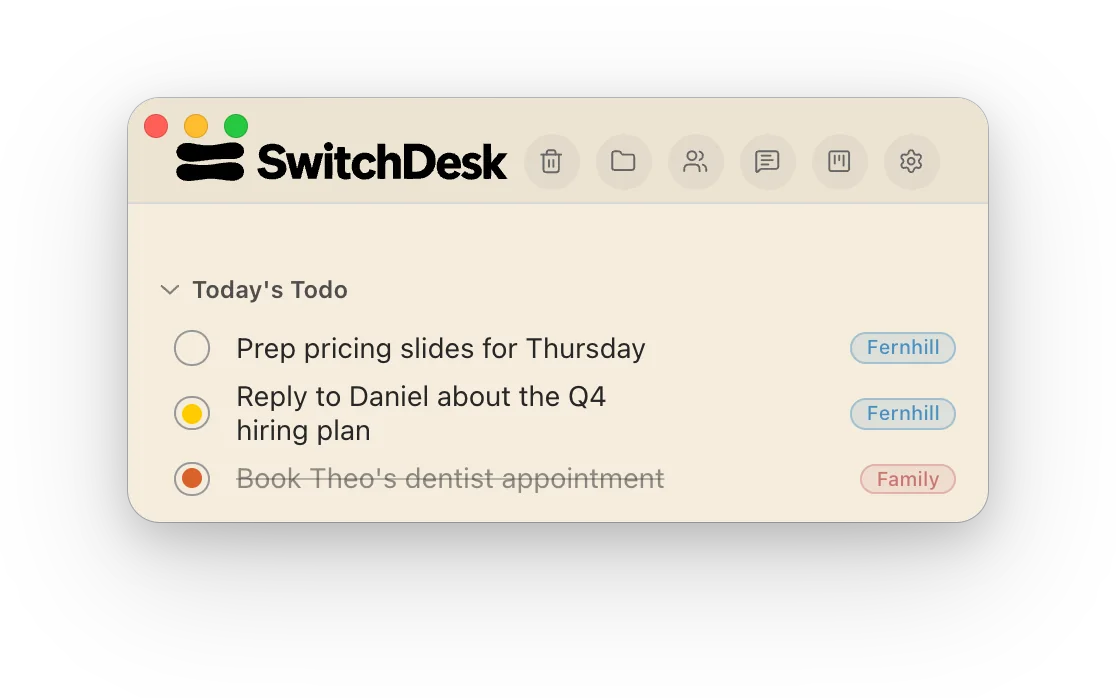
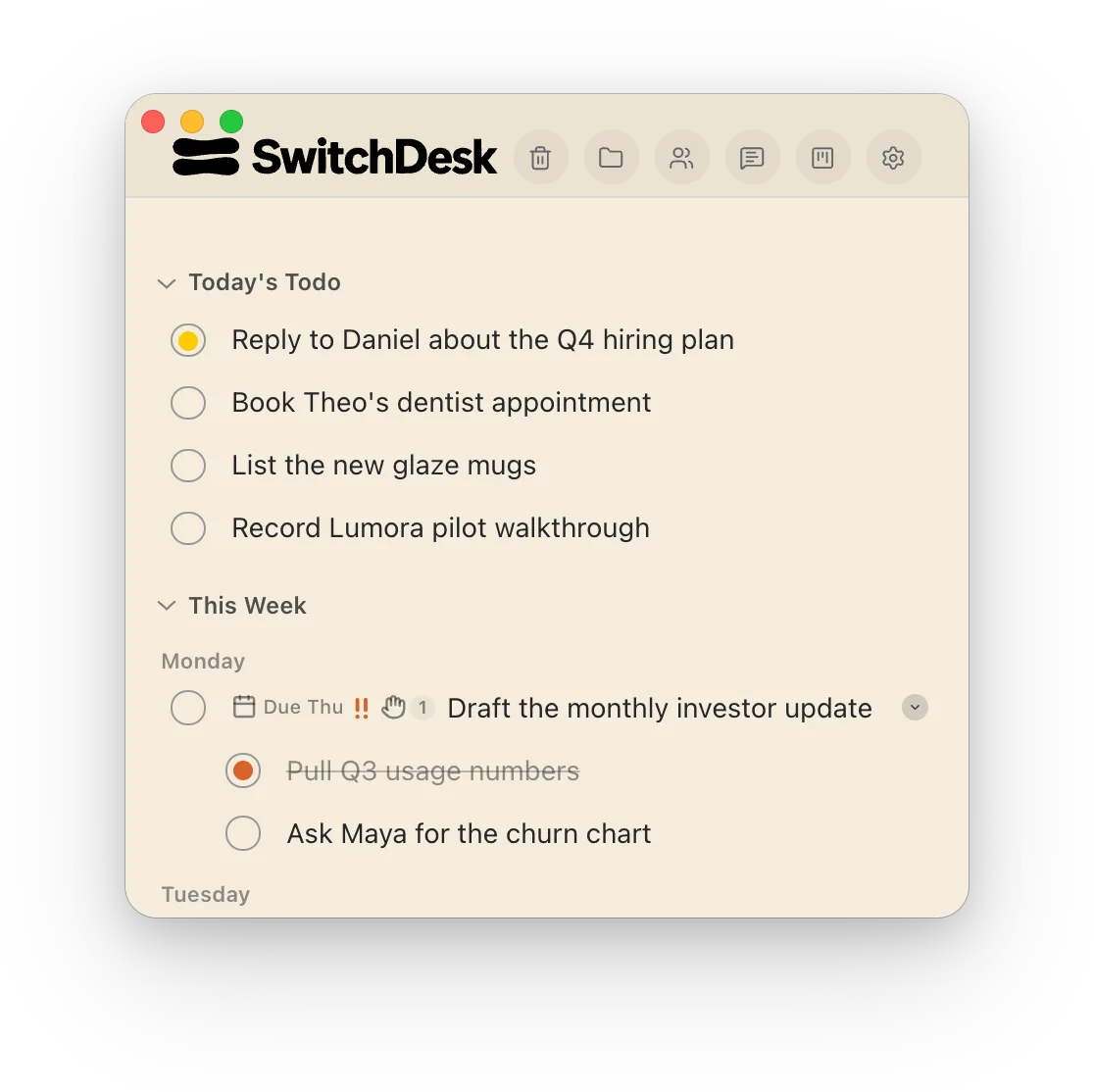
A to-do in “Today’s Todo” or “This Week’s Todo” without a category now shows a small “+ Category” chip. Pick one and the to-do stays where it is, now with its category tag.
The Mac app is named SwitchDesk in Finder, Launchpad and the Dock, and the logo in the window header is a sharp vector at every size. Your settings, permissions and data carry over as they were.
The to-do window’s header shows the SwitchDesk logo by default. In Settings → Appearance → Header logo you can type your company’s name in one of 13 fonts, previewed on light and dark headers, or use an image.
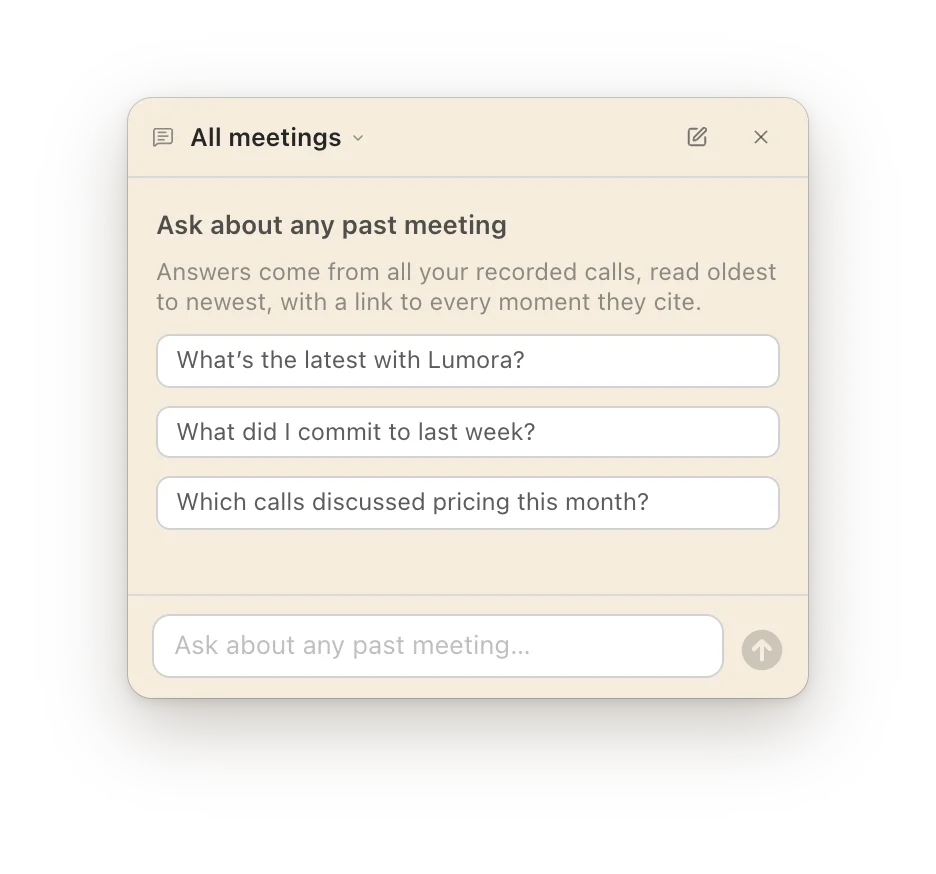
Ask “What have we promised Lumora so far?” in the new “Ask me about any past meetings” bar, and it answers across all your calls. It shows which calls it read and links each point to its moment; click one to open the transcript at that line.
Ask across all meetings, before your first question
Lines said while Google Meet was hidden now get their names
When the Google Meet window goes behind another tab or desktop, the lines said meanwhile now get their names once it’s back. In the live captions, each person keeps one color for the whole call.
The notepad (notes, Ask and live captions) no longer floats above every app: click your call and it goes behind like any other window. It still comes to the front when a recording starts.
Meetings open on “Call Summary”, with “Transcript” and “My Notes” beside it and Ask on the right
A meeting opens on its Call Summary, with Transcript and My Notes a click or ⌘1–3 away. Ask moves to a pane on the right (⌘J), each meeting keeps its own chat, and timestamps in an answer jump to that moment.
Three views, ⌘1–3
Meetings
Fixes and improvements
Rename a category on another device and this Mac’s meetings follow it. Notes now save in one step, so a crash can’t leave half a file.Build 213
Meeting search that narrows, and typing ahead in the to-do chat
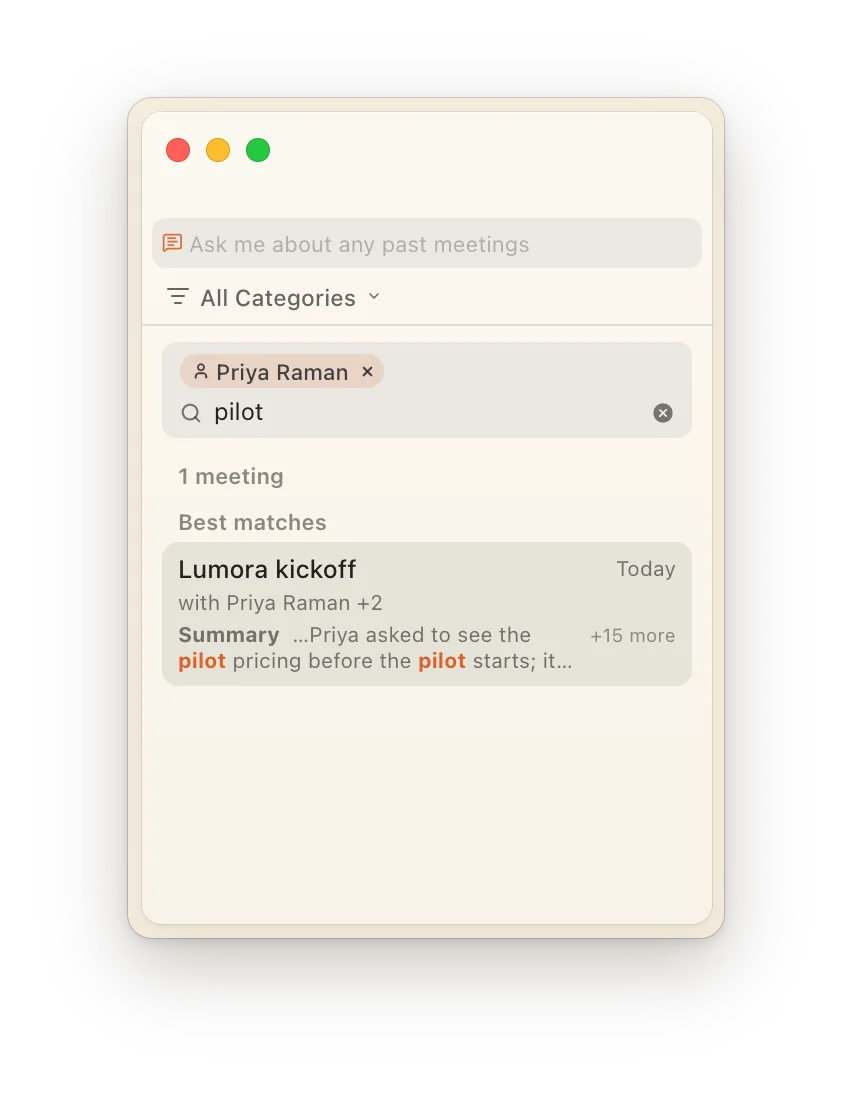
Meetings search now looks through titles, people, companies, summaries, your notes and transcripts, shows at most five best matches, and turns a person, company or date into a filter chip. In the to-do chat you can keep typing after Return: the next message waits its turn instead of creating a duplicate.
Search for “pilot”, narrowed to one person
Meetings
To-dos
Fixes and improvements
In chat, your new message moves to the top and the reply streams in below it, instead of the view rolling down to a blank area.Build 206
2 builds
Fixes and improvements
Opening “My Meetings” right after a call could freeze the app. Fixed, and the Meetings library loads with less work.Build 205
While you’re muted in Google Meet, other voices your mic picks up no longer show up as yours, and a freeze in the live captions is fixed.Build 204
Echo stays out of your lines, and names come from Google Meet’s captions
On speakers, your mic also hears the other side; those words no longer show up as yours. On Google Meet, lines are now named from Meet’s own captions, your own included.
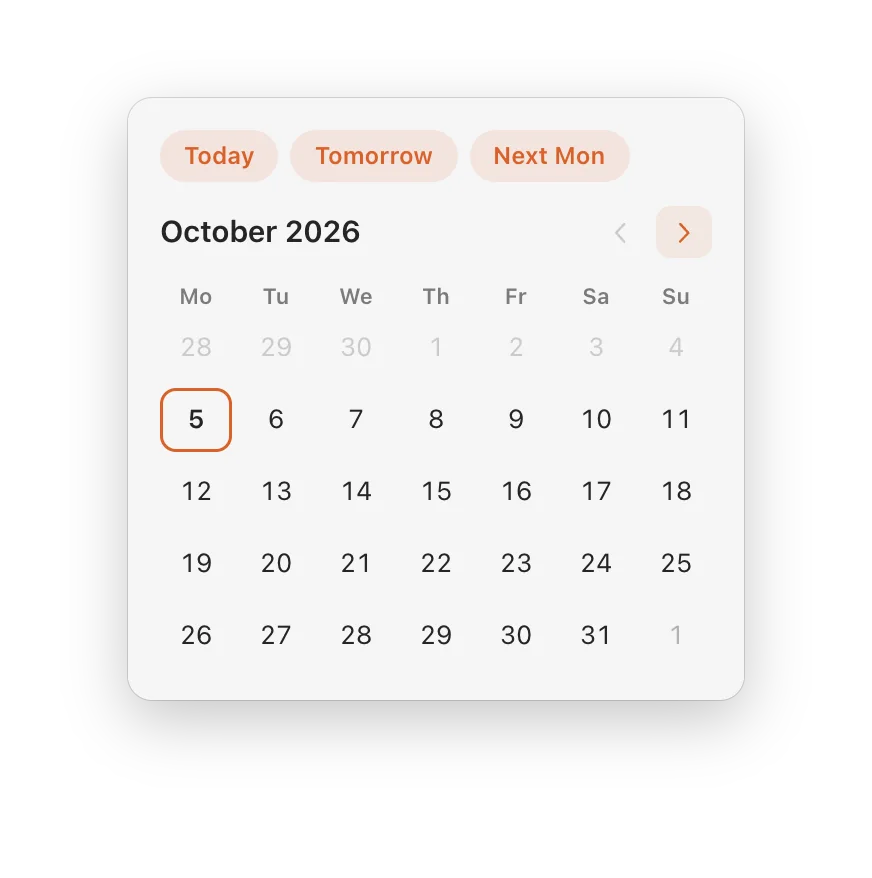
“Assign Due Date…” now opens a full-size month grid where one click on a day sets the date, with “Today”, “Tomorrow” and “Next Mon” shortcuts and “Remove due date”.
A dated to-do joins “This Week’s Todo” in its week, sits under its day, and reaches “Today’s Todo” when it’s due. A date only ever moves a to-do earlier.
Live captions name each person as they talk on Google Meet
On Google Meet, the live captions drawer now names each person as they talk, using Google Meet’s own captions. Start recording before you join and SwitchDesk keeps looking for the call. On other call apps, lines read “You” and “Them”.
Tools that sent you a to-do can mark it in progress or done
A tool that sent you a to-do with your key can now mark it in progress or done. In dictation, version numbers come out typed with their dots and dashes: say “two point four point one” and you get 2.4.1.
Make a key in Settings → Developer → Incoming to-dos, and a support form or your own script can add to-dos to your list. They arrive in Incoming, and links in to-dos are now clickable.
Resize the live captions, and see your own chat messages in color
In the captions drawer, A− and A+ change the text size, and Settings → Meetings has a “Caption text size” slider. In every chat, your own messages now show in orange, so a conversation reads as question and answer.
Meetings
Fixes and improvements
Hovering a toolbar button could crash the app, and some tooltips were cut off with “…”. Both fixed.Build 198
Tools that send you to-dos can hear back: switch it on for a key in Settings → Developer and they get a signed webhook when you finish, reopen or delete their to-dos.Build 196
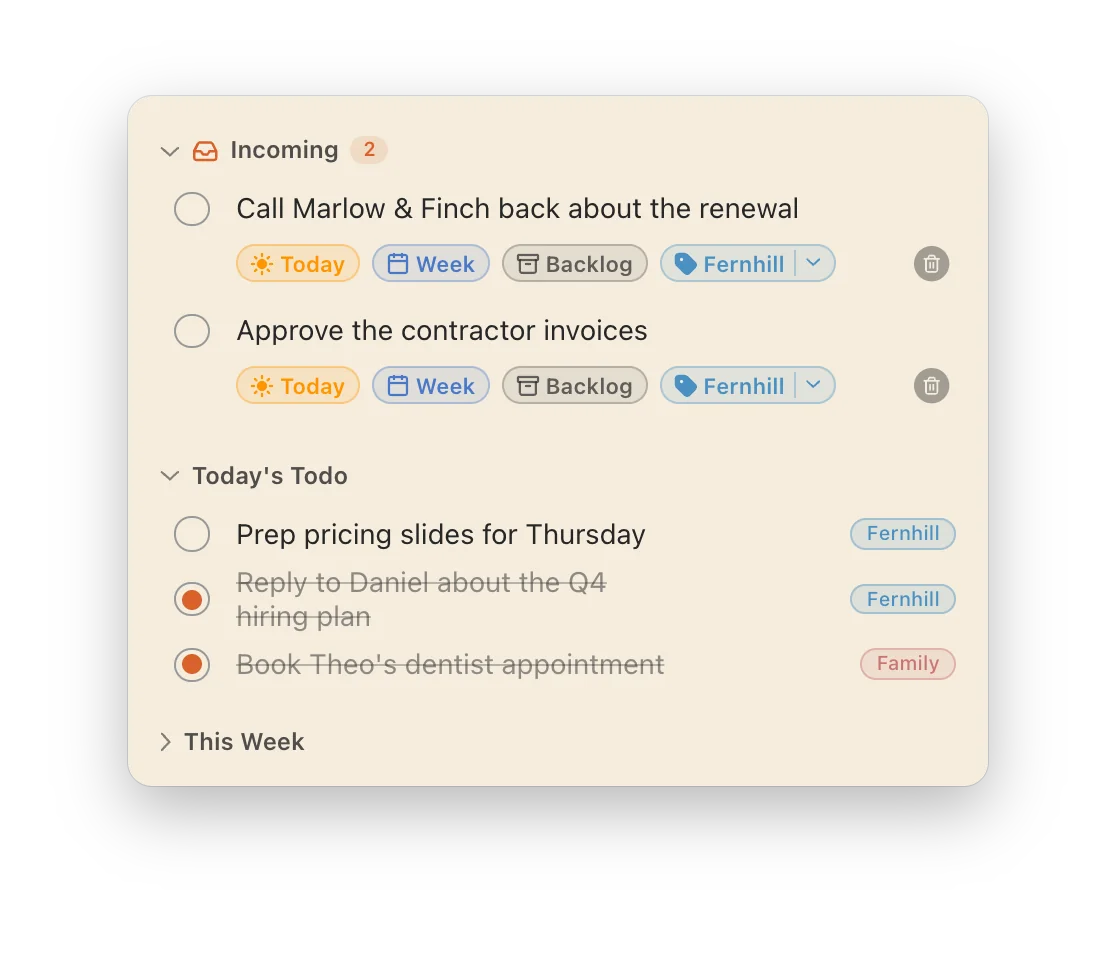
Incoming rows show the to-do on one line and its actions (Today, Week, Backlog, a category) on the next.Build 195
Speaker names: a line is named only when that person’s own captions match it, and stays unnamed when someone else could have said it.Build 194
Settings → Developer is now three steps: make a key, choose its options, copy its documentation. “Sync now” moved to Account.Build 192
Security: AI and live-transcription requests now carry your sign-in, and each kind of request has its own rate limit.Build 189
Transcripts of Google Meet calls name who said what
On Google Meet, SwitchDesk turns on Meet’s captions, reads the name beside each one and matches the words to your transcript. On other call apps, lines read “Me” and “Them”.
Meetings
Fixes and improvements
Speaker names: when someone replies with the same words just after you, your longer line stays yours.Build 187
Plus four behind-the-scenes builds.
6 builds
Fixes and improvements
The live captions drawer could freeze the app during a call. Fixed.Build 177
On a long call, Ask no longer answers “not said on the call” about something that’s right there in the captions.Build 176
Plus four behind-the-scenes builds.
1 build
Fixes and improvements
With the Meetings window open on a past call, recording a new call could freeze the app. Fixed.Build 175
Nothing in this area yet.
Builds 20–174 · 13 milestones
Earlier
Milestones from before build 175, newest first. Smaller builds aren’t listed.
Build 156
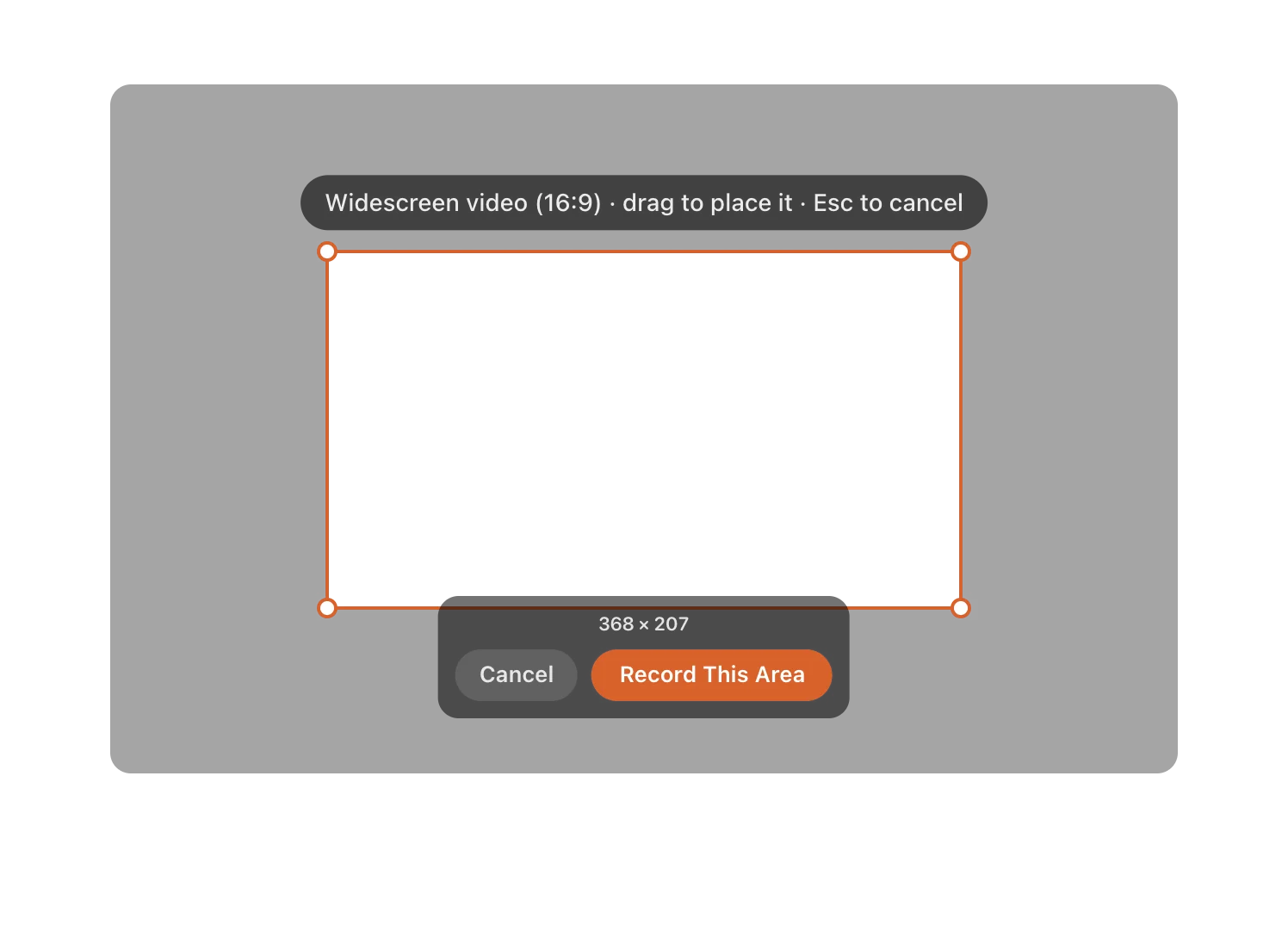
Area recording gets shapes
Record a freeform area, a square or a 16:9 frame.
Build 130
Screen recording arrives
Record your whole screen, one window or an area, with your camera in a bubble.