SwitchDesk for Mac
macOS 14.6 or later · Apple silicon & Intel
Needs an internet connection · Dictation is English only
Then from $12/mo, billed yearly · See pricing →
What’s new →Menu-bar app for Mac
Dictation, meeting notes, screen videos and your to-do list, in one Mac app.
macOS 14.6 or later · Apple silicon & Intel
Needs an internet connection · Dictation is English only
Then from $12/mo, billed yearly · See pricing →
What’s new →SwitchDesk for iPhoneiPhone appComing soon to the App Store
Types where your cursor isNo bot joinsLink copied at StopTo-dos filed by category
Download started
Open SwitchDesk.dmg from your Downloads, then drag the icon onto the Applications folder.
If Safari asks, click Allow.Didn’t start? Download againThen open it: all four steps ↓
First run
Step 1
Double-click the file in your Downloads folder. In the window that opens, drag the SwitchDesk icon onto the Applications folder.
Then eject the disk image and open SwitchDesk from Applications.
Step 2
macOS asks once for any app downloaded outside the App Store. The same prompt says “Apple checked it for malicious software and none was detected.”
Step 3
If Globe already opens emoji or Apple’s dictation, setup shows the one setting to change. Give each category a short bio: that’s how SwitchDesk knows where a to-do goes.
You can change each of these later in Settings.
Step 4
Let go and the pill says “Todo Added”. It lands in your list under the category whose bio fits. “Add to...” puts it on “Today’s Todo” or “This Week’s Todo”.
Say “add to today <task>” to put it straight on “Today’s Todo”.
Press and hold the 🌐 key on the desktop to try it yourself.
SwitchDesk’s to-do list: Today’s Todo, and Fernhill with the new to-do at the bottom.
Animation added for this page
SwitchDesk’s to-do list: Today’s Todo, and Fernhill with the new to-do at the bottom.
Illustration of the disk-image window.
Permissions and sync
Why we askSwitchDesk uses the microphone for dictation, meeting recording, and narration in screen recordings.
Voice Dictation — asked from Settings → Dictation or the first time you dictate.
Why we askLets SwitchDesk insert dictated text into other apps’ fields.
Voice Dictation — asked with the microphone, the first time you dictate.
Why we askLets SwitchDesk detect the Globe key while you’re in other apps.
Voice Dictation — so holding 🌐 works in any app.
Why we askSwitchDesk reads your upcoming events to start a countdown before meetings.
Meeting Notes — asked when you turn on “Countdown before meetings”.
Why we askSwitchDesk captures system audio only while you record a meeting, so it can transcribe the other participants for your meeting notes.
Meeting Notes — asked the first time you record a call.
Why we askLets SwitchDesk record the screen, window or area you pick in Create Video.
Create Video — asked the first time you record your screen.
Why we askSwitchDesk uses the camera for the optional webcam bubble in screen recordings.
Create Video — asked when you switch the camera on.
Turned one off by mistake? Open System Settings → Privacy & Security, pick the permission and switch SwitchDesk on.
Install SwitchDesk and grant permissions →What leaves your Mac, and why →
Open Settings → Account, type your email and click “Send magic link”.
Open the email from SwitchDesk and click its button. The link works once and expires in an hour.
Your browser opens a SwitchDesk page and hands you back to the app, with your list syncing.
The iPhone app is coming soon to the App Store.
Requirements and trial
macOS 14.6 or later
Apple silicon and Intel Macs. Sonoma 14.6 or newer, Sequoia or Tahoe. Check yours in Apple menu → About This Mac.
An internet connection
Dictation, meeting transcripts and the notes all need one. Dictation is English only.
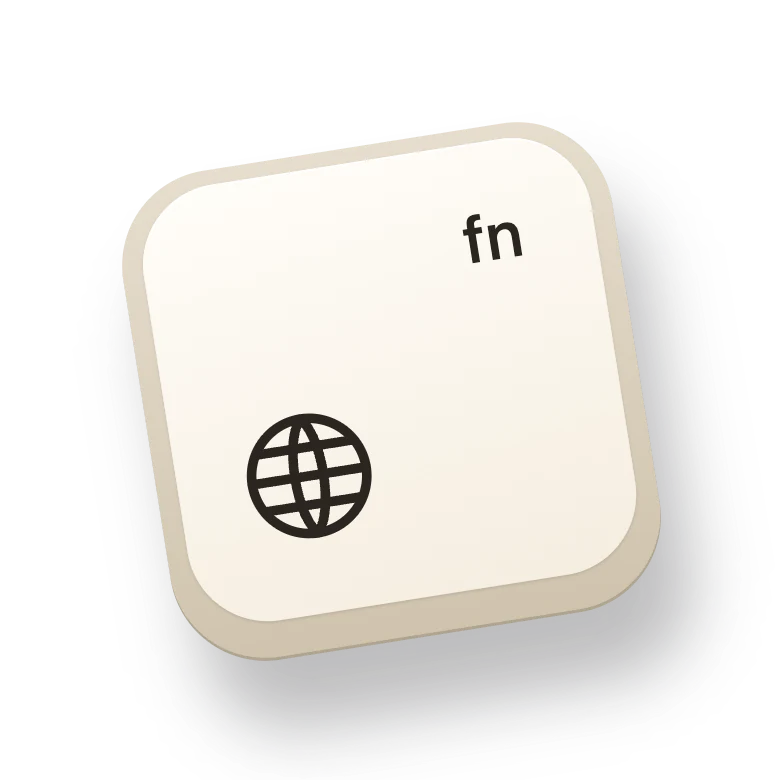
The Globe key
Hold it to dictate on an Apple keyboard. On other keyboards, ⌘⇧Space toggles hands-free dictation.
Set up the Globe keyThe trial