Skip to content

SwitchDesk for Teams

Share your work to-dos with your team. Keep the rest private.

Switch on the Fernhill category in Settings → Teams, and Maya and Daniel see its to-dos on their Macs.

Download for Mac

macOS 14.6 or later · 14-day free trial

Plan: Teams, Both plans

  • Say a to-do and it’s filed
  • Add a call’s to-dos in one click
  • Each person needs their own account
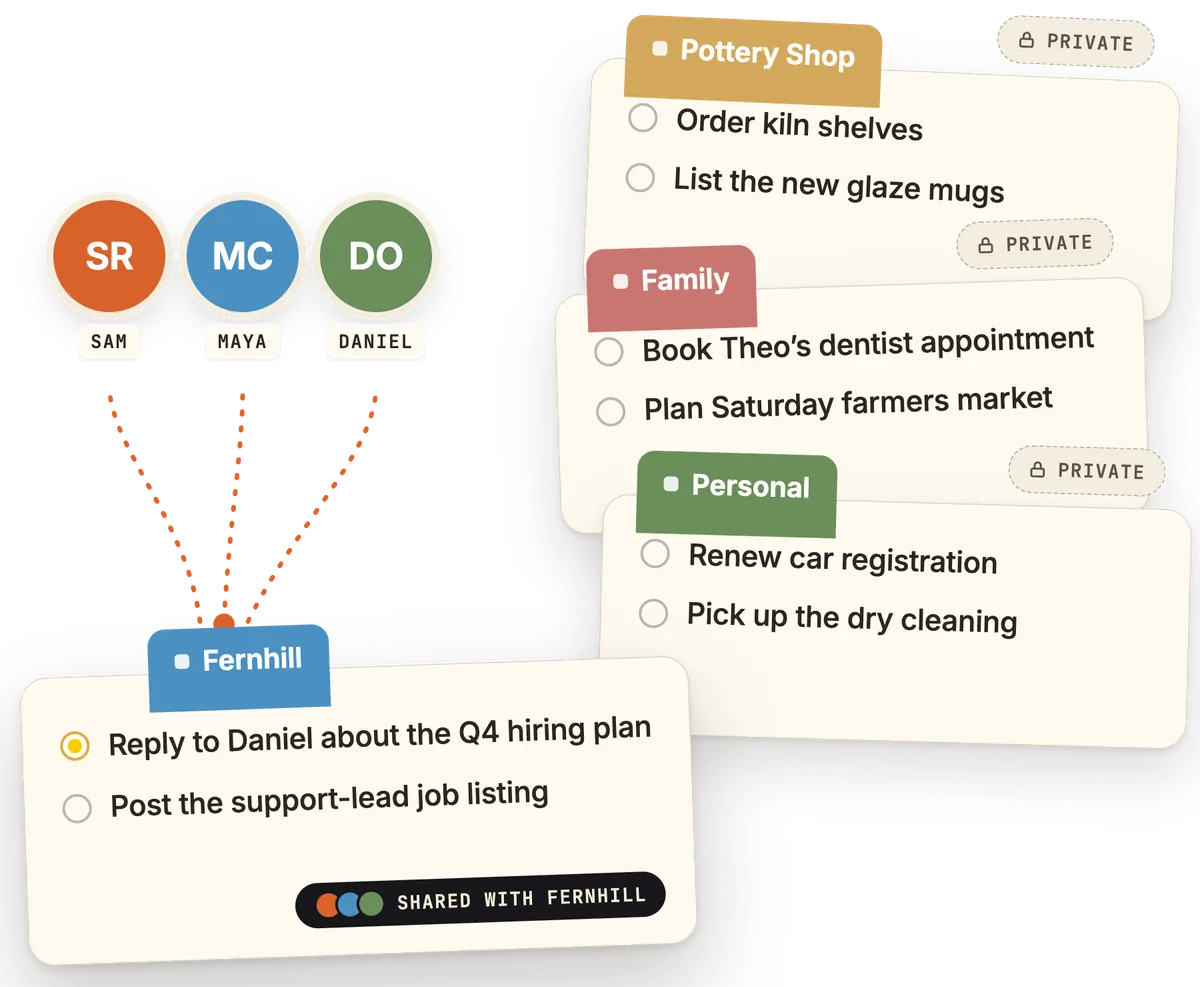
Sam’s four categories as cards: Fernhill is shared with Sam, Maya and Daniel; Personal, Family and Pottery Shop are private.
Illustration

How sharing a category works

Sam keeps work, errands, family and his pottery side hustle in one list: Fernhill Personal Family Pottery Shop. One switch per category decides what his Fernhill team sees.

Skip

Switch on Fernhill.

In “Shared with team”, Sam turns Fernhill on. Once Maya switches Sam on in her team menu, his Fernhill joins her list.

Leave Personal, Family and Pottery Shop off.

Nobody on the Fernhill team sees them, so “Book Theo’s dentist appointment” stays Sam’s alone.

In Settings → Teams, Sam switches on Fernhill only; Maya’s list gains its to-dos and nothing from Personal, Family or Pottery Shop.

Sam Rivera's to-do window.

Shared with team

Categories you toggle on are visible to teammates. Untoggled categories stay private.

Illustration: Maya's list

Maya's list.
See it as:
Illustration · rings, callouts and fades added for this page

Private by default

Maya sees Fernhill. That’s it.

Share a category and your team sees its to-dos, including the ones you pull into Today. Personal, Family and Pottery Shop stay private.

  • NO peeking at categories you didn’t share.
  • YES to that category’s to-dos, notes and sub-to-dos included.

Meetings and videos aren’t part of team sharing.

Settings → Teams “Categories you toggle on are visible to teammates. Untoggled categories stay private.”

Maya’s Mac

Maya Chen’s to-do window: her own Today’s Todo and Fernhill, then Sam Rivera’s Today’s Todo and Sam Rivera’s Fernhill, each row ringed in Sam’s colour. Nothing from Personal, Family or Pottery Shop.

Sam’s to-dos sit under his name, each ringed in his color.

Side by side

Your team’s shared to-dos, side by side.

Click the team icon in the to-do window and switch teammates on. Their shared to-dos join your list, each row ringed in their color. “Show Team Side by Side” gives each person a column.

  • Open a teammate’s to-do to read its notes or “Add a team note”.
  • “Collapse to 1 Column” folds them back into your list.
  • You can’t edit a teammate’s to-dos, but you can take one from their backlog.

The to-do window side by side: your list on the left, then Daniel Ortiz and Maya Chen's shared to-dos in their own read-only columns. A backlog item in a teammate's column can be taken with “Take & Assign to Me”.

Try the switches, or “Collapse to 1 Column”.

Your list first, then one column per teammate with their shared Fernhill to-dos. Scroll sideways to see them all.

Teammates’ cards show on your Board, with their names.

Open the Board and Maya’s and Daniel’s Fernhill cards sit in your columns, tinted their color, with their names on each. Yours say “Me”.

Assign & take

Assign it, or take it from the backlog.

Shown in the Apricot theme

Assign

Open a to-do’s details, click “Choose…” under “Assign to teammate” and pick Daniel Ortiz. “Approve the contractor invoices” leaves your list and lands under “Recently Assigned to Me” on his Mac. He can keep it, add it to “Today’s Todo” or delete it.

Sam’s Mac

Sam’s to-do window after the assignment: “Approve the contractor invoices” has left his Fernhill.

Daniel’s Mac

1.Record the onboarding walkthroughFernhill
Approve the contractor invoicesFernhill

Take

Right-click a row in a teammate’s shared backlog and choose “Take & Assign to Me”. “Fix the export button bug” moves into your list, still in the backlog under Fernhill.

The to-do window side by side: your list on the left, then Daniel Ortiz and Maya Chen's shared to-dos in their own read-only columns. A backlog item in a teammate's column can be taken with “Take & Assign to Me”.

Roles and invites

Send a teammate the invite code from Settings → Teams. It works once and expires in 48 hours.

Owner
Creates the team, invites people and picks the admins.
Admin
Invites people and shares their own categories with the team.
Member
Sees what’s shared and can take from a shared backlog.

Teammates see you by the name you set in “Your name (visible to teammates)”.

Teams

Fernhill, 3 members: Sam Rivera (you), owner; Maya Chen, admin; Daniel Ortiz, admin.

INVITE CODE

Q7M2-K9XA

Share with someone to add them to your team. Expires in 48 hours; single-use.

Shared with team

Categories you toggle on are visible to teammates. Untoggled categories stay private.

Lands in your to-do list

Add the call’s to-dos, then assign Maya hers.

Click “Add all” when the Lumora kickoff ends. Both to-dos file under Fernhill; assign “Set up the pilot workspace” to Maya and it waits on her Mac.

The action-items popup from the Lumora kickoff, in front of the call’s notes, adds two to-dos to Sam’s Fernhill; “Set up the pilot workspace” is then assigned to Maya Chen and appears under her Recently Assigned to Me.

The Meetings window showing “Lumora kickoff” (Wednesday, 2:14 PM · 16:02) on the Call Summary view.

Lumora kickoff
Summary

Lumora wants a 12-seat pilot for its support team, starting next month. If it goes well they'd roll out to all 40 agents, so the next step is a revised proposal with pilot pricing by Thursday.

  • 12 seats for the support team, starting next month
  • Rollout to all 40 agents if the pilot goes well
  • Revised proposal with pilot pricing due Thursday
Key Discussion Points
  • Pilot Scope. Joe wants 12 seats for Lumora's support team to start, beginning next month.
  • Rollout Path. If the pilot goes well, Lumora would roll it out to all 40 agents.
  • Pilot Pricing. Joe asked to see the pilot pricing before the pilot starts; it goes in the revised proposal.
  • Check-in. A pilot check-in with Joe two weeks in.
Decisions
  • 12-Seat Pilot. Start with Lumora's support team next month.
  • Two-Week Check-in. Review the pilot with Joe two weeks in.
Action Items
  • You | Send Lumora the revised proposal by Thursday
  • Maya | Set up the pilot workspace
  • You | Book a pilot check-in with Joe two weeks in
  • Share the pilot pricing with Lumora before the pilot starts
Notable Quotes
  • “If the pilot goes well, we'd roll it out to all forty agents.” — Joe
  • “We'd want twelve seats to start, for the support team, starting next month.” — Joe
SwitchDesk’s end-of-call popup for “Lumora kickoff”: 2 suggested to-dos — Send Lumora the revised proposal, Set up the pilot workspace — each with an Add button, plus Not now and Add all.

Sam’s list: “Send Lumora the revised proposal” has landed under Fernhill.

Maya’s Mac

Maya’s to-do window: “Set up the pilot workspace” waits under Recently Assigned to Me.

Animation added for this page.

Settings → Meetings: “When the call’s speakers could be identified, the notes show who took each item.” Names come from Google Meet’s captions.

Also in SwitchDesk

Pricing

What a team costs.

Team tools (shared categories, side-by-side columns, assign & take, roles) are in both plans: Essential at $12/mo per person billed yearly, Pro at $18/mo. Each person pays for their own plan today.

Annual: 2+ months free

Essential

per person

12 dollars per month, billed yearly, save 20 percent

  • Unlimited dictation with AI Polish
  • Shared categories with your team
  • Teammate columns, assign & take, roles
  • 25 h/mo of meeting notes — about 50 half-hour calls
  • Unlimited screen videos with share links

Pro

Recommended

Your 14-day trial is Pro

per person

18 dollars per month, billed yearly, save 21 percent

Everything in Essential, plus:

  • Unlimited meeting notes — no monthly cap
  • Unlimited Ask across all meetings
  • Recap
  • Opus and Fable in AI Chat

Each person needs their own SwitchDesk account today.

Teams questions

More in Help →
Can teammates see my other categories?
No. They see only the categories you switch on in Settings → Teams.
Can teammates change my to-dos?
No. They can read a shared to-do, “Add a team note” to it, or take it from your backlog.
Can I share Today?
No. Today and This Week can’t be shared, but a to-do from a shared category stays visible to that team after you pull it into Today or This Week.
Who can share categories?
Team owners and admins. Each one chooses which of their own categories the team sees. Everyone on the team can take from a shared backlog.
What happens when someone leaves?
Their categories stop being shared. The app tells the person leaving: “You’ll lose access to other members’ to-dos. Your own to-dos stay with you.”
Does everyone need SwitchDesk?
Yes. Each person needs their own SwitchDesk account today, on a Mac with macOS 14.6 or later.
Can I pay for the whole team?
Not today. Each person picks and pays for their own plan.

Pick the categories your team should see.

Small teams →

SwitchDesk is a Mac app

Send yourself the download link, then open it on your Mac.

switchdesk.org/download

Or scan it with your phone’s camera.