What “saved on your Mac first” actually means
“Saved on your Mac first” is easy to say and easy to stretch. It can be read as a promise that nothing is ever sent, or as a cache of a real copy kept somewhere else. In SwitchDesk it means something narrower and checkable: the original of every call and every video is a set of ordinary files on your Mac, and anything that goes out is a copy, sent for a named reason.
Every call is a folder of ordinary files
When Sam Rivera records the Lumora kickoff, SwitchDesk makes a folder for it on his Mac, named by the date, the start time and the title: 20261007-141400-lumora-kickoff. The files you’ll use:
The Meetings window showing “Lumora kickoff” (Wednesday, 2:14 PM · 16:02).
mic.cafYour side of the call: your mic, as its own track.system.cafTheir side: the call’s audio, as a second track.transcript.jsonThe transcript, line by line, with timestamps.notes.mdThe Call Summary, as Markdown.manual-notes.mdWhat you typed in My Notes, saved as you type.meta.jsonThe title, time, length and category.The two audio files are why no bot joins the call. SwitchDesk records your mic and the call’s audio as two tracks on your Mac, so nothing has to sit in the participant list to hear the other side. They’re also why the transcript knows which lines were yours.
None of it is a proprietary format. CAF is Apple’s Core Audio Format, the JSON files are plain text, and Markdown is plain text with headings. Markdown opens in any text editor, and the audio opens in QuickTime Player.
Every video is an MP4 before it’s a link
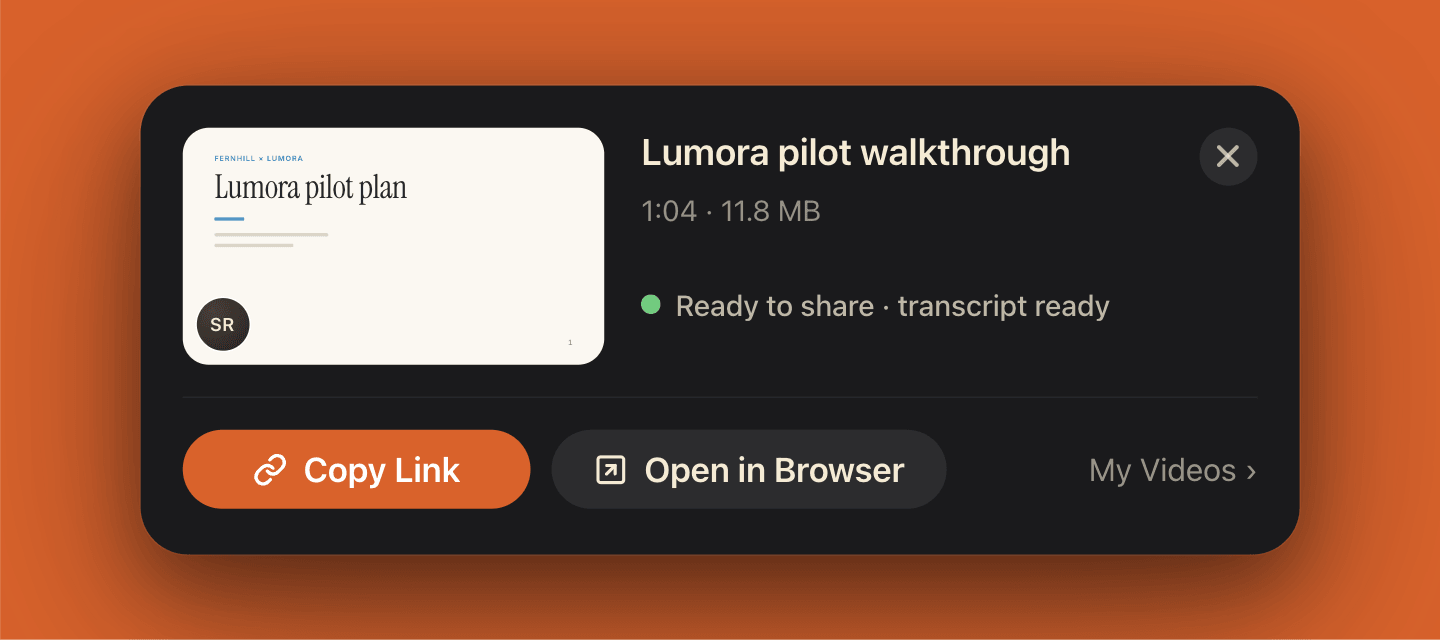
Create Video writes video.mp4 into its own folder, with audio.m4a and meta.json next to it. Sam’s “Lumora pilot walkthrough” is 11.8 MB on disk before a byte of it uploads, and My Videos lists every recording.
The upload is a setting. By default, “Copy a share link when I stop recording” is on: at Stop, a copy uploads for its unlisted link, and its audio is transcribed on our server for the share page and the title. Switch it off in Settings → Videos and nothing uploads until you choose to share.
If the network drops, the recording is already on your Mac. The share card says so and waits:
And the copy can be taken back. In My Videos, “Stop Sharing…” does what its confirmation says: “The link stops working right away and the online copy is deleted. The video stays on this Mac.”
What leaves your Mac, when, and why
Saved on your Mac first doesn’t mean offline. Transcription and the AI features work on copies, sent when the feature runs. Here is each flow:
Stored on your Mac
Lumora kickoff · saved on this Mac
- Meeting audio, transcripts and notes
- Your original video files
- Recent dictations
- Recap’s activity log
Sent — when, and why
Dictation, while you talk
Your voice streams to our transcription provider, with words from your Dictionary as hints. If it can’t be reached and Siri & Dictation is on, Apple’s speech recognition takes over — on your Mac when it can, otherwise on Apple’s servers. With AI Polish on, the words go to an AI model to tidy them.
Meetings, during the call
Your mic and the call’s audio stream for live captions and the transcript. The recording files stay on your Mac.
Meetings, after the call
The transcript — with speaker names when they were identified — goes to an AI model for notes, suggested to-dos and Ask.
Videos, at Stop
When “Copy a share link when I stop recording” is on — the default — a copy uploads for its unlisted link, and its audio is transcribed on our server for the share page and the title. With the setting off, nothing uploads until you share.
To-dos, categories and your Dictionary
Synced through our servers to your other Macs; a shared category also goes to the teammates you share it with.
AI Chat and Recap
What you send, and the activity Recap summarizes, goes to an AI model.
Meeting exports
Only to destinations you set up, signed and relayed by our server.
See every service by name on the security page →
Your files open without SwitchDesk
Your notes don’t depend on an account page. The Call Summary is a Markdown file: copy it, or put it in your own notes app. The folders sit inside your home folder, so if you use Time Machine, they’re backed up with everything else.
If you stop paying, your meetings, videos and notes stay readable and exportable, and share links stay live for 90 days before they show as paused.
Check it yourself on your Mac
Open the meeting’s folder
Open a meeting and choose “Show in Finder”. The folder and its files are there, named as above.
Play the video without SwitchDesk
In My Videos, choose “Show in Finder” on a video. The MP4 plays in QuickTime Player with SwitchDesk closed.
Record without uploading
Switch off “Copy a share link when I stop recording” in
Settings → Videos, record a short test, and open My Videos. The video is there, with no link, until you share it.
Last updated .