How to record Google Meet on Mac without a bot
Disclosure: SwitchDesk is our app, and it’s one of the options below. It does dictation, meeting notes, screen videos and your to-do list, in one Mac app.
Meet’s Record button
Eligible Google Workspace plans
- Who’s told
- Everyone in the call, by Meet
- What’s captured
- The active speaker and anything presented
- Where the file goes
- The organizer’s Google Drive
- Use it when
- You organize the call, and your plan includes recording.
The Mac’s recorder⇧⌘5
Built into macOS
- Who’s told
- No one: you tell them
- What’s captured
- Your screen and your mic, not the call’s sound
- Where the file goes
- A video file on your Mac
- Use it when
- You need a video of your screen, and your voice is enough.
A desktop app
Records both sides, no bot
- Who’s told
- No one: you tell them
- What’s captured
- Your mic and the call’s audio, as two tracks
- Where the file goes
- Depends on the app. SwitchDesk keeps it on your Mac
- Use it when
- You’re a guest, or you want the audio, transcript and notes yourself.
A meeting bot is an extra participant. It joins the call, shows up in the people list with a name like “Notetaker”, and records from inside the meeting. You don’t need one to record a Google Meet call on a Mac.
Fig. 1 compares the three ways to do it; the details follow. Every Google and Apple fact below comes from their own help pages, read on Oct 5, 2026.
1. Google Meet’s own Record button
If your organization’s Google Workspace includes recording, Meet can record the call itself. Google lists recording on Business Standard, Business Plus, Enterprise and Education Plus editions, among others, plus Google One plans with 2 TB or more of storage. Your admin has to allow it, and the host decides who else can start it.
- Everyone is told. Participants get a notification when the recording starts and when it stops.
- The file goes to the organizer’s Drive, in a “Google Meet” folder with a sub-folder for each meeting. The organizer and the person who started the recording get an email with the link.
- It has limits. The recording shows the active speaker and anything presented. You can record on a computer or an Android device, and a recording stops on its own after 8 hours.
Meet also has transcripts and Gemini’s “Take notes for me”. Both need an eligible edition, both save to the organizer’s Drive, and both show an icon to everyone in the call. Google lists eight languages for each: English, French, German, Italian, Japanese, Korean, Portuguese and Spanish.
Skip it when you’re a guest on someone else’s call, you’re on a personal account without the 2 TB plan, or you want the audio on your own Mac.
2. The Mac’s screen recorder
Press ⇧⌘5 (Shift-Command-5), pick a recording tool, and use Options to choose a microphone. Apple’s guide lists microphones and “None”. It doesn’t offer the Mac’s own sound.
That means the other people in the call are recorded only as well as your mic hears them through your speakers, and not at all if you wear headphones. You get a video file and nothing else: no transcript, no notes.
3. A desktop app that records the call’s audio
The third way is an app on your Mac that records two things: your microphone, and the sound your Mac plays, which is everyone else in the call. macOS asks you to allow this once. Because nothing joins the call, nobody new appears in the participant list.
Several apps work this way. As of Oct 5, 2026, Granola says it “uses your computer audio, so doesn’t invite a bot”. Otter has a desktop app that records without one, and Fathom’s homepage says it’s “now available bot-free”. SwitchDesk, our app, records this way too; its steps are below.
Tell people you’re recording
Whichever way you record, say so. Meet’s own recording notifies everyone. The Mac’s recorder and a desktop app don’t announce themselves in the call, so that job is yours. Laws on recording calls vary by country and state, and some require everyone’s consent.
How SwitchDesk does it
Recording a Google Meet call with SwitchDesk
Decide how the recording starts.
Choose “Record Meeting” from the SwitchDesk menu in the menu bar. Or switch on “Countdown before meetings” in
Settings → Meetings: a pill counts down to your next calendar meeting (“Lumora kickoff · 4:32”) and offers Record when it starts.Allow System Audio Recording once.
The first recording asks for macOS’s “System Audio Recording” permission. That’s what lets SwitchDesk hear the call without joining it.
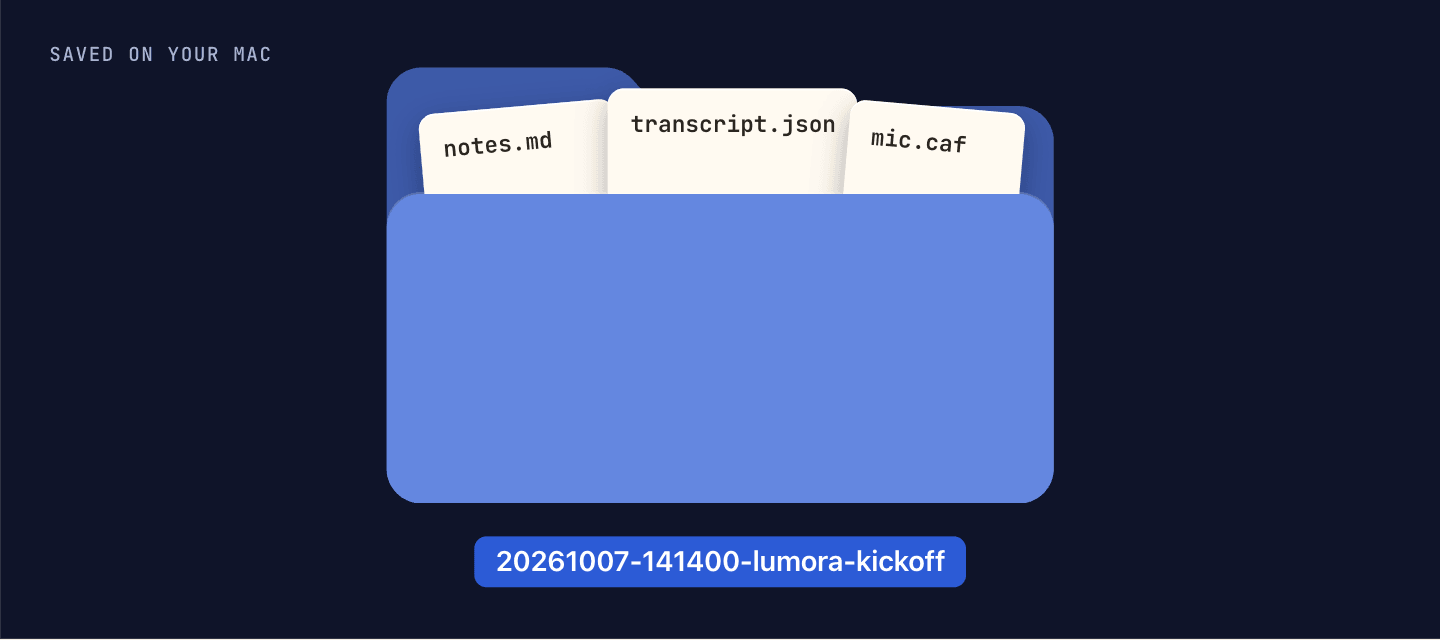
Talk. Two tracks are saved on your Mac.
Your mic and the call’s audio are recorded separately and transcribed live. The pill reads “Recording · Lumora kickoff”, with Open, Stop and Cancel.
Get names from Google Meet’s captions.
With “Identify speakers by name” on, lines get real names from Google Meet’s own captions in Chrome. It doesn’t guess names from voices. On other call apps, your lines read “Me”, theirs “Them”.
Hit Stop. The notes and suggested to-dos follow.
The Meetings window opens on the call’s notes, and an “Action items” card offers its to-dos.
What you have when the call ends
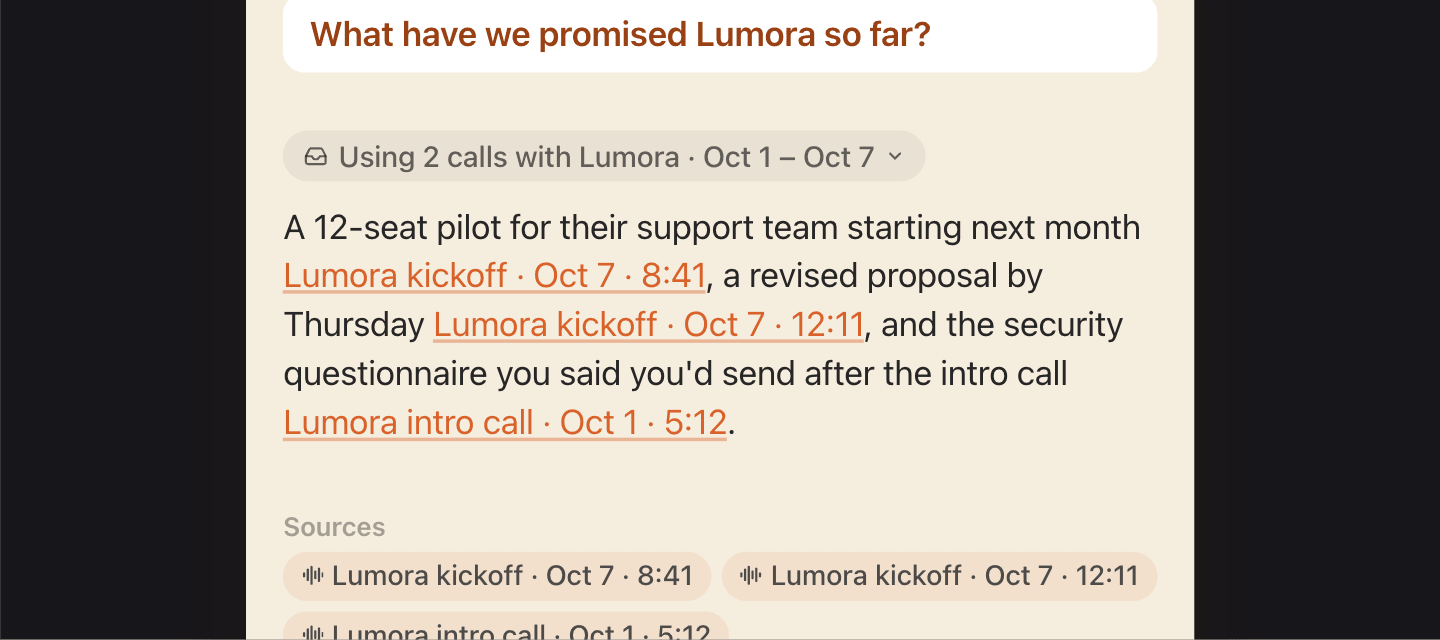
The notes open on “Call Summary”: a short summary, the key points, decisions, action items and notable quotes. “Transcript” has every line with its time stamp, and “My Notes” has what you typed in the notepad during the call. “Ask about this call” answers a question with a link to the moment it was said.
When the notes are ready, the “Action items” card floats up with the call’s to-dos, each filed under a category. Nothing is added until you choose: “+ Add” takes one, “Add all” takes the lot, and “Not now” closes it.
The card closes itself once everything’s added.
How Meeting Notes works →SwitchDesk vs Granola →Otter alternative →
Sources
- Google Meet Help — Record a video meeting · Read Oct 5, 2026
- Google Meet Help — Use transcripts with Google Meet · Read Oct 5, 2026
- Google Meet Help — Take notes for me in Google Meet · Read Oct 5, 2026
- Apple — Mac User Guide: Take screenshots or screen recordings · Read Oct 5, 2026
- Granola — Home (“Uses your computer audio, so doesn’t invite a bot”) · Read Oct 5, 2026
- Otter — Desktop app · Read Oct 5, 2026
- Fathom — Home (“Now available bot-free.”) · Read Oct 5, 2026
- SwitchDesk — Settings → Meetings, Settings → Dictation, Settings → Videos and the app’s floating panels, checked in the app’s source · Read Oct 5, 2026
Last updated .