Turn meeting notes into to-dos automatically
The card closes itself once everything’s added.
Sam’s Fernhill list: Send Joe the pilot timeline by Thursday, and Book a pilot check-in with Joe. Added suggestions appear at the bottom.
Most calls end with a few promises. “I’ll post the job listing today.” “I’ll send you feedback tomorrow.” The notes catch them. Then the notes get filed, and the promises sit in a document nobody opens again.
The fix is moving each action item out of the notes and into the list you work from.
Why action items get lost
- They live in the wrong place. Your day runs on your to-do list. The notes are somewhere else, so getting the action items means going back for them.
- They’re mixed together. Maya’s, Daniel’s and yours sit in one bulleted list, and it’s easy to skim past your own.
- They’re vague. “Pricing follow-up” doesn’t say what to do. A to-do you can’t start gets skipped.
The two-minute habit, no app needed
Read them back before you hang up.
“So: who’s doing what, and by when?” Saying it out loud means everyone leaves with the same list, and nobody discovers a promise in the notes on Friday.
Write each one as a verb and an object.
“Send Lumora the revised proposal”, not “proposal”. If you can’t start it from the title alone, it isn’t a to-do yet.
Put the deadline where you’ll see it.
Set a due date, or leave “by Thursday” in the title. Either beats a deadline that lives only in the notes.
Move yours into your list before the next call.
Only yours. Teammates track their own, and a list full of other people’s promises stops being a list you trust.
Here’s what that looks like for Sam’s weekly team sync, from three lines he said on the call:
1:58Me“I'll post the support-lead job listing today — I'll add the salary range and share it in the founders' group.”
Post the support-lead job listing Due today
- Add the salary range
- Share it in the founders' group
2:41Me“Daniel, I'll send you feedback on the onboarding flow tomorrow.”
Send Daniel feedback on the onboarding flow Due tomorrow
3:20Me“And I'll book the offsite venue this week.”
Book the offsite venue Due Fri
What “automatically” can mean
There are two levels.
Notes with an action-items section. Many AI meeting-note apps write one. Otter lists action items, and Loom’s Business + AI plan lists AI tasks among its features. Some send them to a task app through an integration; otherwise you copy them over.
To-dos that land in your list. The app offers each action item as a to-do in your list, filed under a category. That removes the step people skip. It’s how SwitchDesk works, because its to-do list and its meeting notes are the same app.
SwitchDesk, our app
How SwitchDesk does it
Record the call. When you hit Stop, a small pill reads “Generating to-do items…” while the notes are written.
Then the “Action items” card from Fig. 1 floats up. Each row is one to-do: its title, the category it will be filed under, an estimate in minutes, and any sub-tasks after a dash. “+ Add” takes one row, “Add all” takes every row, and “Not now” closes the card without adding anything.
The category comes from your categories’ own descriptions. Sam’s Fernhill category reads “Work at Fernhill: clients Lumora and Marlow & Finch, pilots, pricing, proposals, hiring”, so a job listing and a pilot proposal both land there.
They land in the category, not in Today
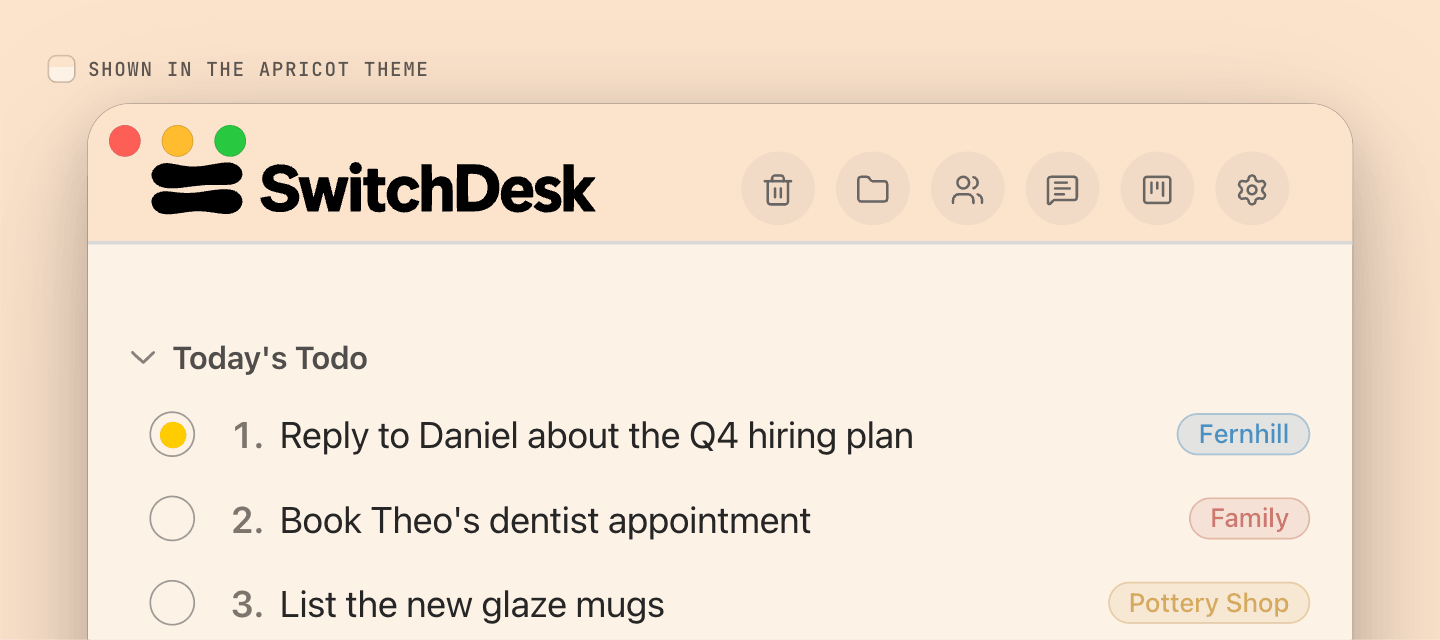
Added to-dos go to the bottom of their category, like anything else you add. Pull today’s ones up with “Add to Today’s Todo” in a row’s right-click menu, and leave the rest where they are. What you dictated this morning and what the call produced sit side by side under Fernhill.
Suggestions don’t pick an owner
A recording can’t always tell who promised what, so the card offers every suggestion and you add the ones that are yours. “How much to suggest” sets how picky the list is.
End-of-meeting to-dos
After a recorded meeting’s notes are ready, a popup suggests the meeting’s action items as todos — with subtasks and a category — to add one-by-one or all at once. When the call’s speakers could be identified, the notes show who took each item; the popup still offers all of them, so add the ones that are yours.
When to say “Not now”
Not every call should make work. A catch-up where nothing was decided, or a call where all the promises were someone else’s, deserves an empty list. “Not now” closes the card and adds nothing, and the notes keep their own “Action Items” section either way. If you’d rather never see the card, switch off “Suggest to-dos after a meeting” in Settings → Meetings.
Make the suggestions better
- Describe your categories. Filing reads each category’s description, so “clients Lumora and Marlow & Finch, pilots, pricing” beats “work”.
- Say the promise clearly on the call. “I’ll send the revised proposal by Thursday” becomes a clean to-do. “Let’s circle back” doesn’t.
- Ask later instead of rereading. “Ask me about any past meetings” answers questions like “What have we promised Lumora so far?” with a link to each moment.
How Meeting Notes works →How the To-Do List works →
Sources
- SwitchDesk — Settings → Meetings, Settings → Dictation, Settings → Videos and the app’s floating panels, checked in the app’s source · Read Oct 5, 2026
- Loom — Pricing · Read Oct 5, 2026
- Otter — Home · Read Oct 5, 2026
Last updated .